TABLE OF CONTENTS
- Accessing the Voicebot Module
- Overview of Voicebot List
- Creating a New Voicebot
- Searching for a Bot
- Configuring Bot Settings
- Deleting a Bot
- VoiceBot in Activity Tab
- Phone Tree Configuration
- Bot Involved Calls in Call Logs Filter
- Conversation History & Winlet
- Reporting & Notifications
- How Voicebot Handles Calls
- FAQs
- Support / Contact
Module: Admin App
Consider the voicebot as an AI phone assistant built just for dental practices. It can speak naturally with patients over the phone and helps them complete tasks such as:
Booking appointments
Rescheduling appointments
Multi-patient bookings
Answering general questions
Voicebot can manage calls across all operating conditions:
- Online Hours: Assists patients when the clinic is open.
- Offline Hours: Handles calls when the practice is closed or the agents are away from their desks.
- Overflow Hours: When all the agents are busy and can't take calls.
To know more about monitoring All Bot-Assisted Calls, click here.
Accessing the Voicebot Module
- Log into VoiceStack Admin App.
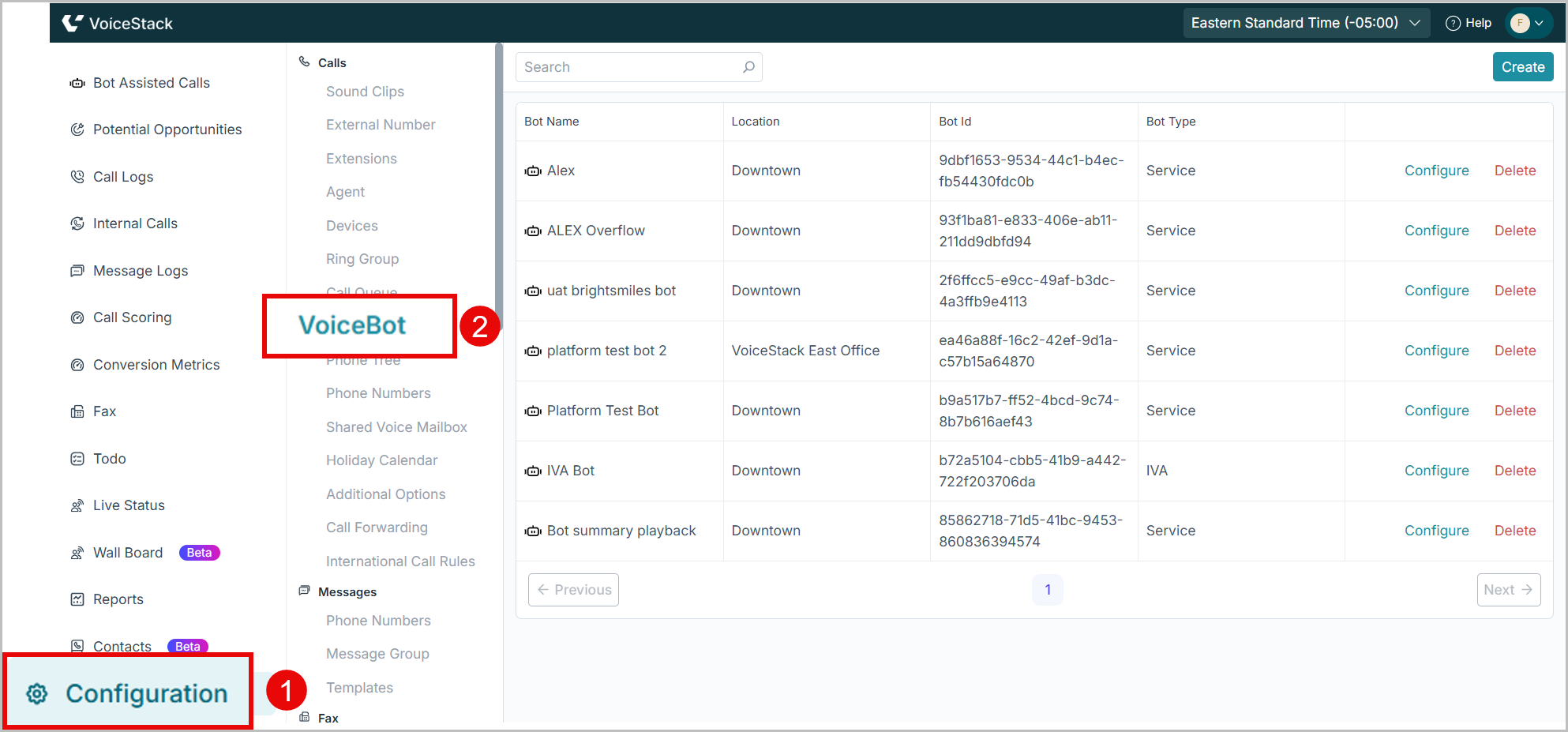
- Navigate to Configuration > VoiceBot.
Overview of Voicebot List
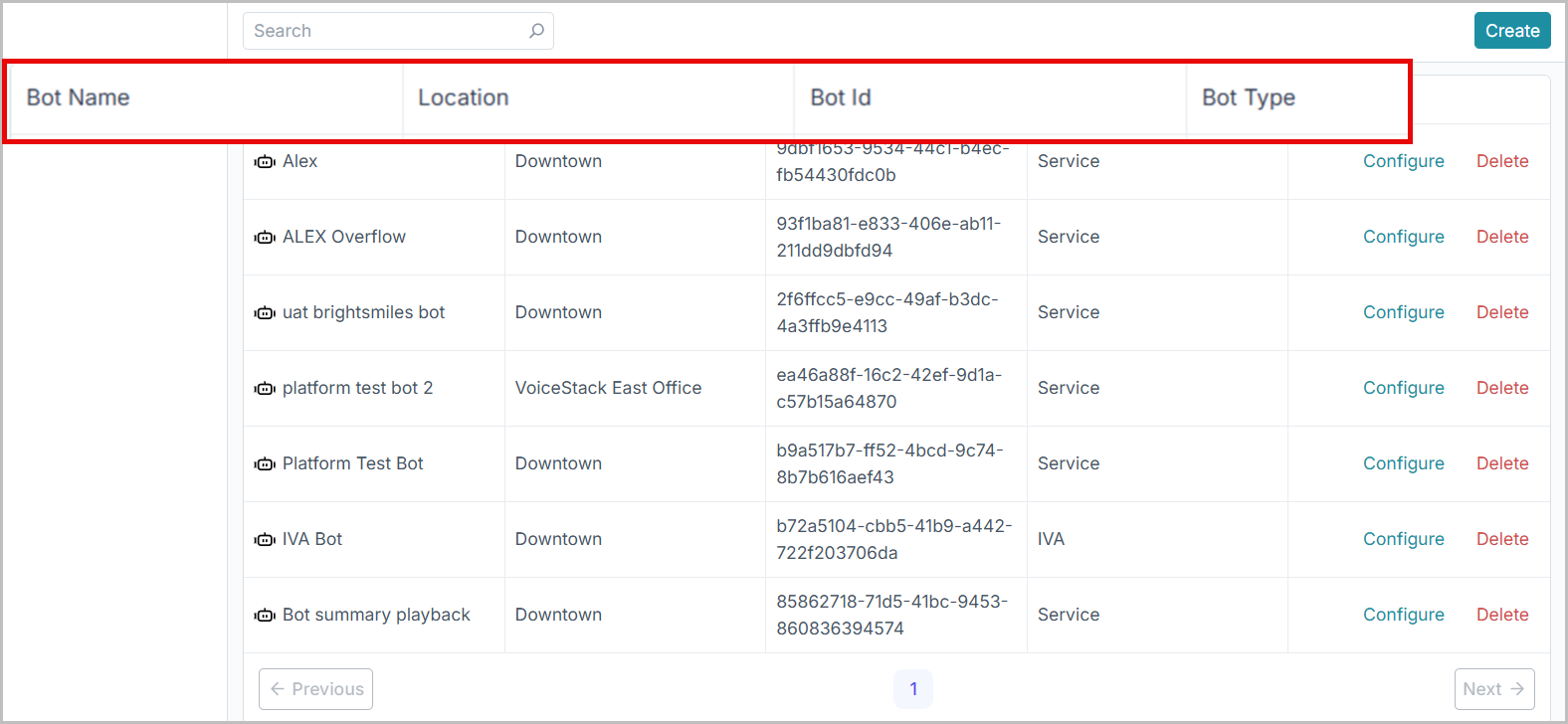
The VoiceBot page displays all existing bots in a table with the following columns:
- Bot Name: Displays the configured name of the bot.
- Location: Shows the associated practice/location selected during the bot creation.
- Bot ID: A unique identifier automatically generated for the bot.
- Bot Type: Whether the bot is a service or an IVA (Interactive Voice Assistant) type or not.
Creating a New Voicebot
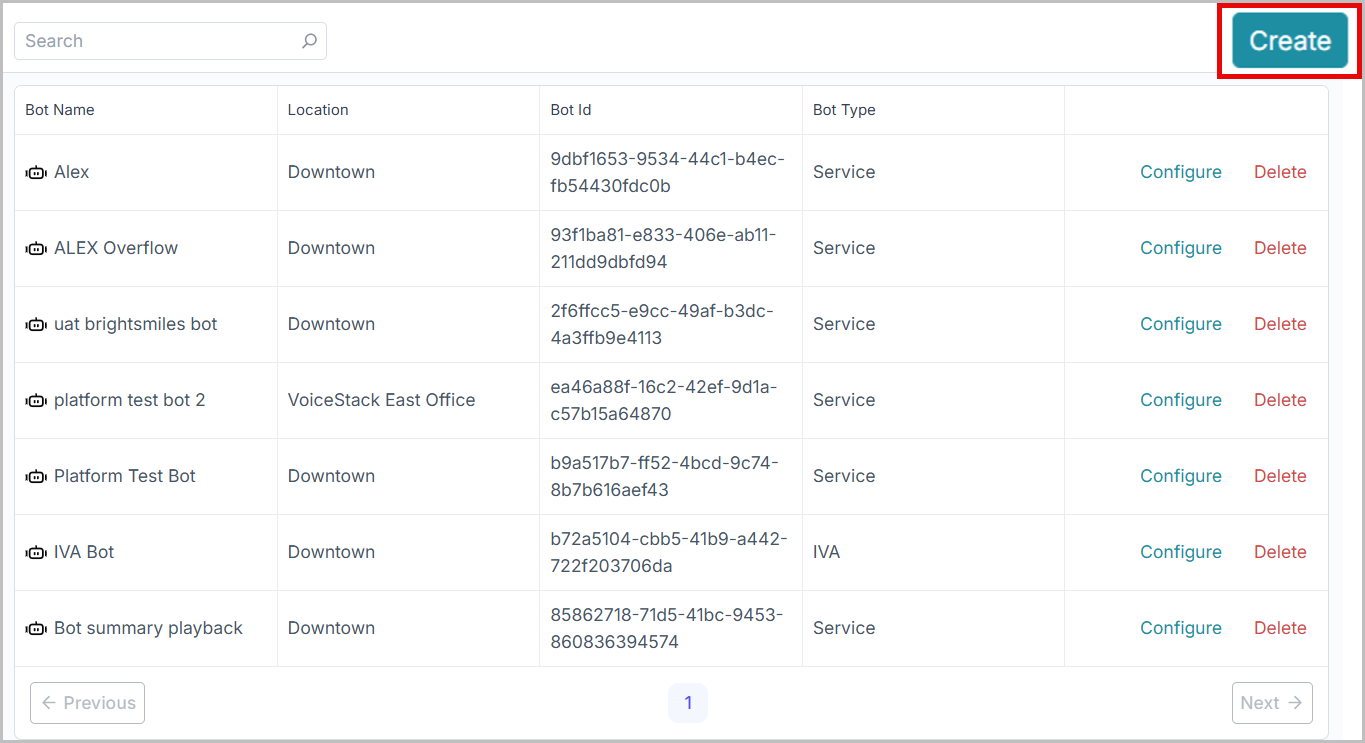
1. Click the Create button at the top-right corner.
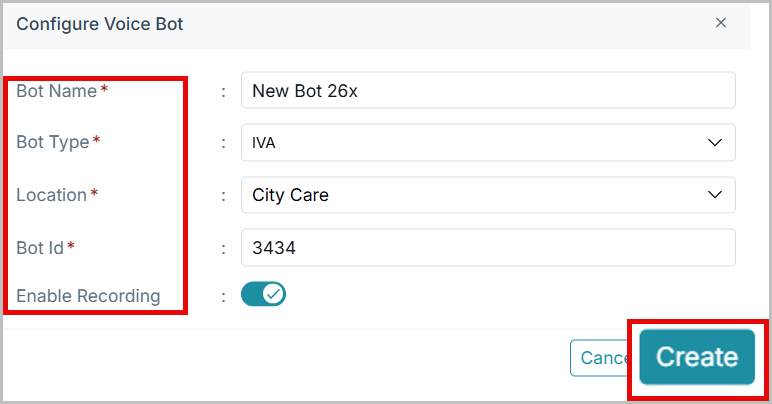
2. Enter the required details in the creation form:
- Bot Name – Provide a meaningful name (e.g., ClinicName Offline Bot).
- Associated Location – Select the practice/location the bot belongs to.
- Voicebot ID – Enter the bot ID provided during setup.
- Enable Recording – Toggle this option if you want to enable call recordings for bot interactions.
- Bot Assisted Calls Visibility – Add agents who should be allowed to view bot-assisted calls. Select the appropriate agents from the dropdown list.
3. After filling all the fields, click Create.
4. The newly created bot will now appear in the list along with its Bot ID and configuration options.
5. All the details related to bot-assisted calls can be viewed in the “Bot Assisted” dashboard. This dashboard provides clear visibility into open and closed calls, follow-ups needed, Bot self-served, and transferred to agents.
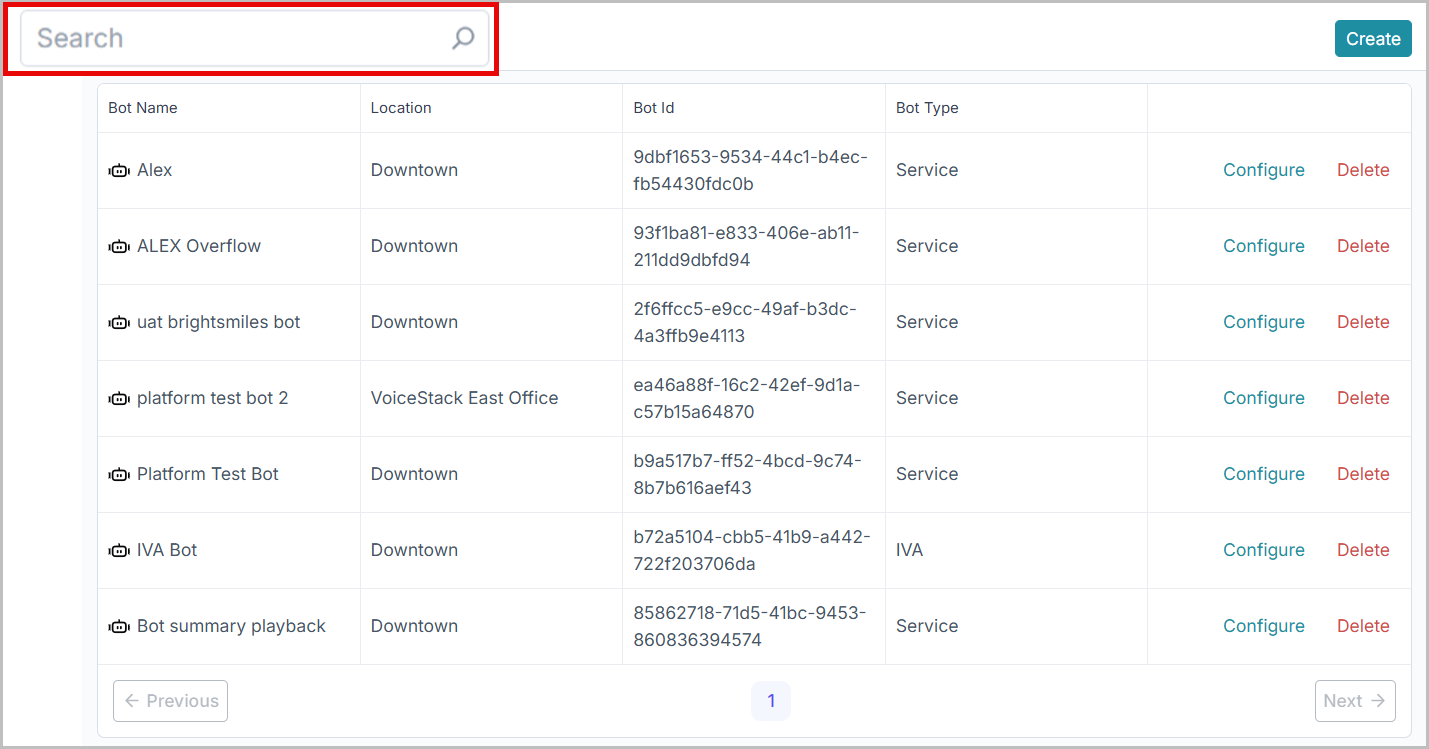
Searching for a Bot
Need to locate a bot quickly?
- Use the search bar at the top of the page.
- Enter the intended bot name.
- The list instantly filters your results.
This is especially useful when managing bots across multiple practice locations.
Configuring Bot Settings
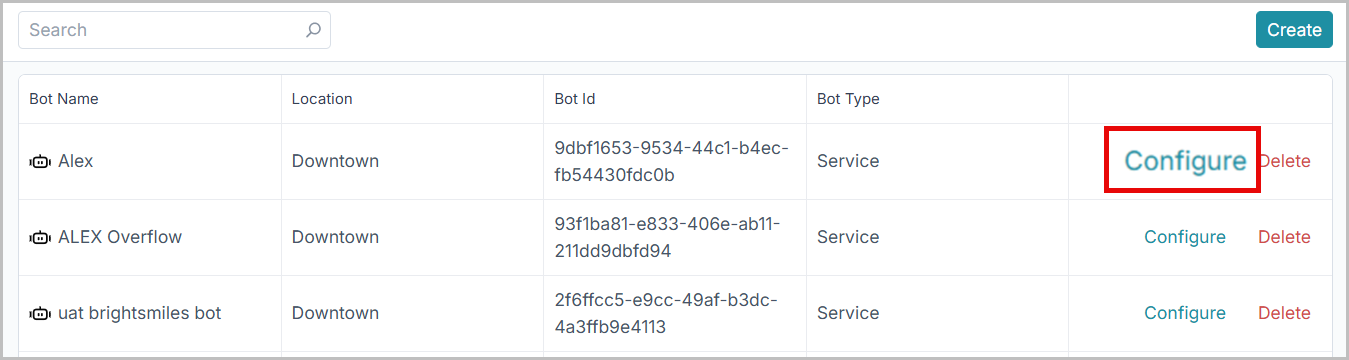
- Locate the bot in the list.
- Click Configure.
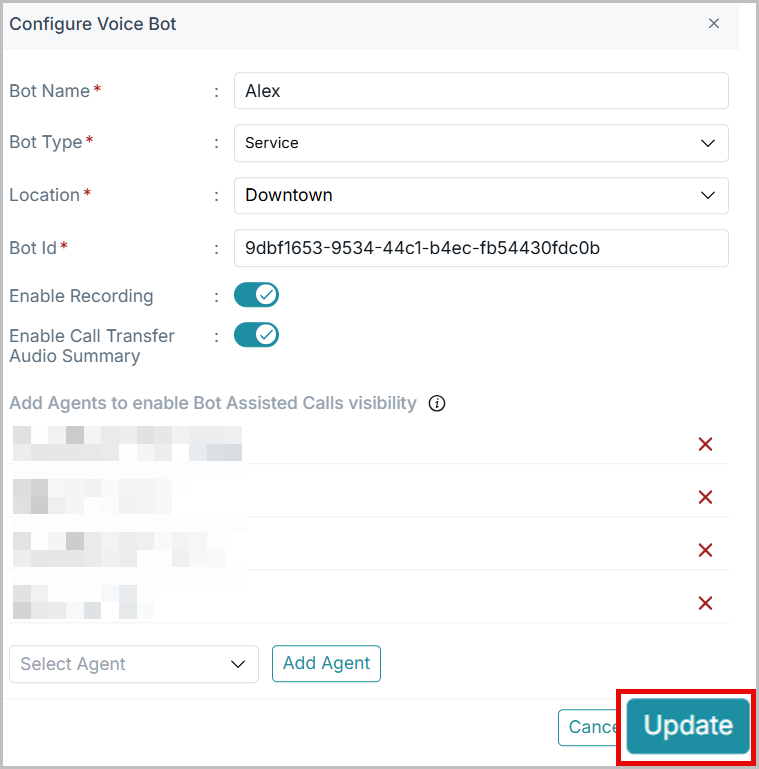
- Update the settings as needed on the Configure Voice Bot pop-up.
- Click Update.
Deleting a Bot
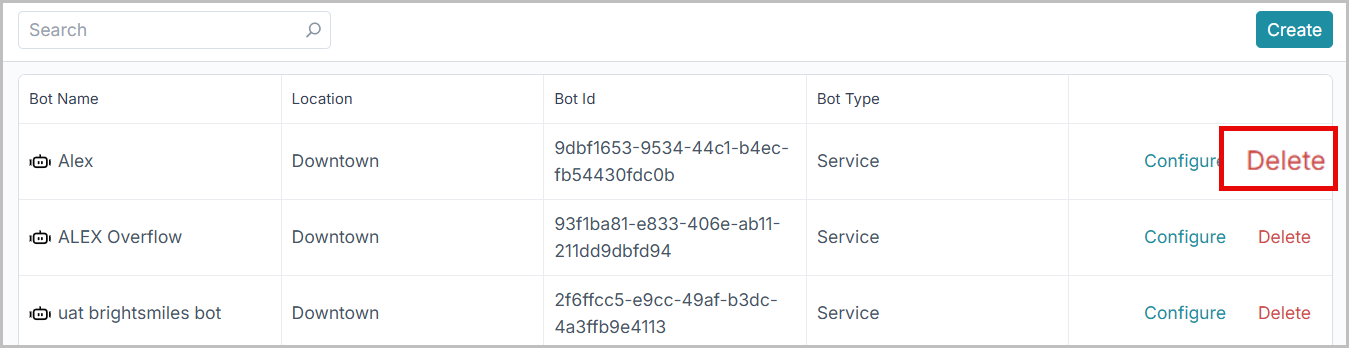
- To delete a bot, click Deletenext to the bot you want to remove.
- A confirmation dialog will appear to prevent accidental deletion.
VoiceBot in Activity Tab
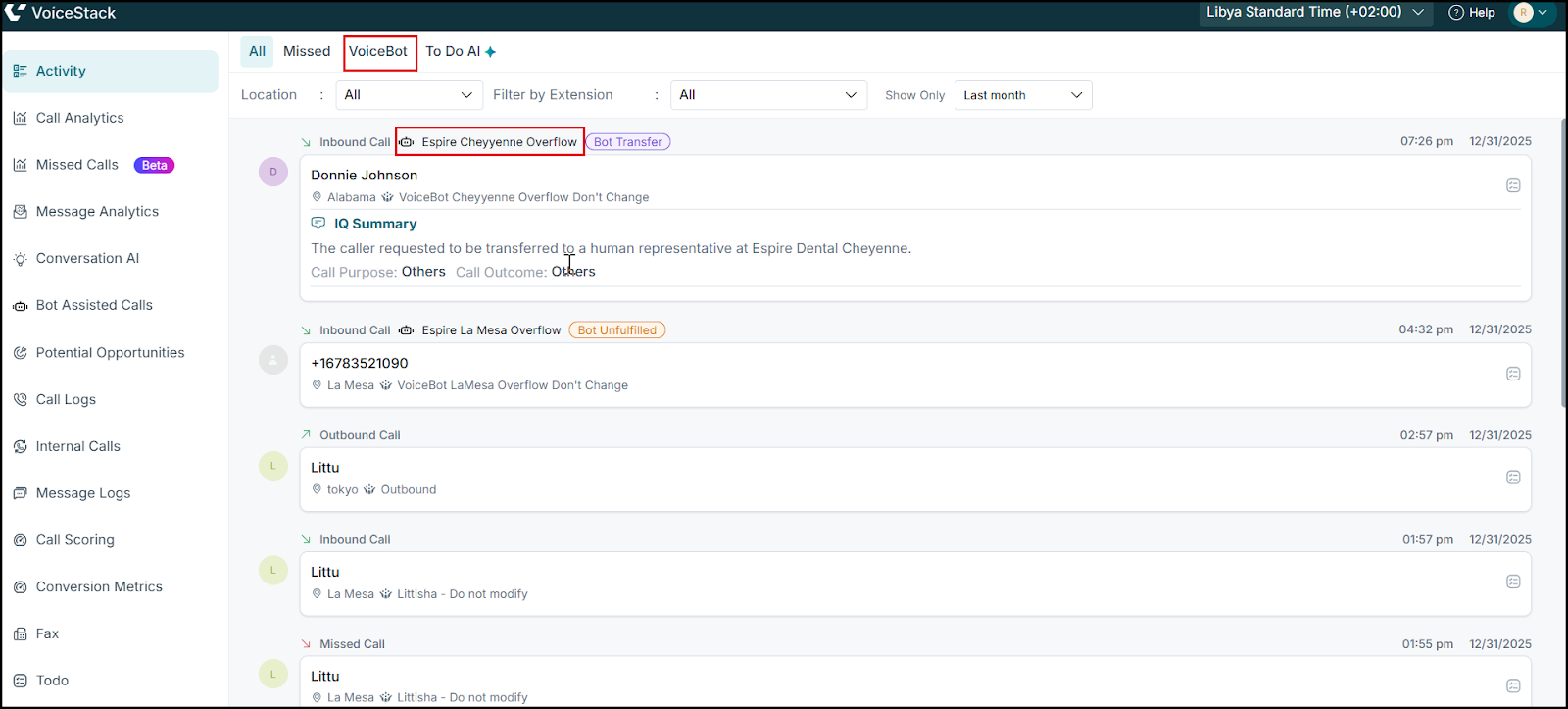
- Voicebot activity is available within the Activity tab, providing visibility into all calls that involve bot interactions.
The Voicebot view displays a detailed log of every call where the bot participated, alongside regular calls for complete context.
Calls with any level of bot involvement are clearly marked with a bot icon.
The icon displays the bot name and call status, making it easy to identify how the bot was involved in each interaction at a glance.
Filters Available
- Location: Filter by the location the bot is configured in.
- Filter by Extension: Filter the list by extensions.
- Show Only: Ability to filter by date.
| Note: This dashboard is not agent-specific and shows the same data in both apps. |
Phone Tree Configuration
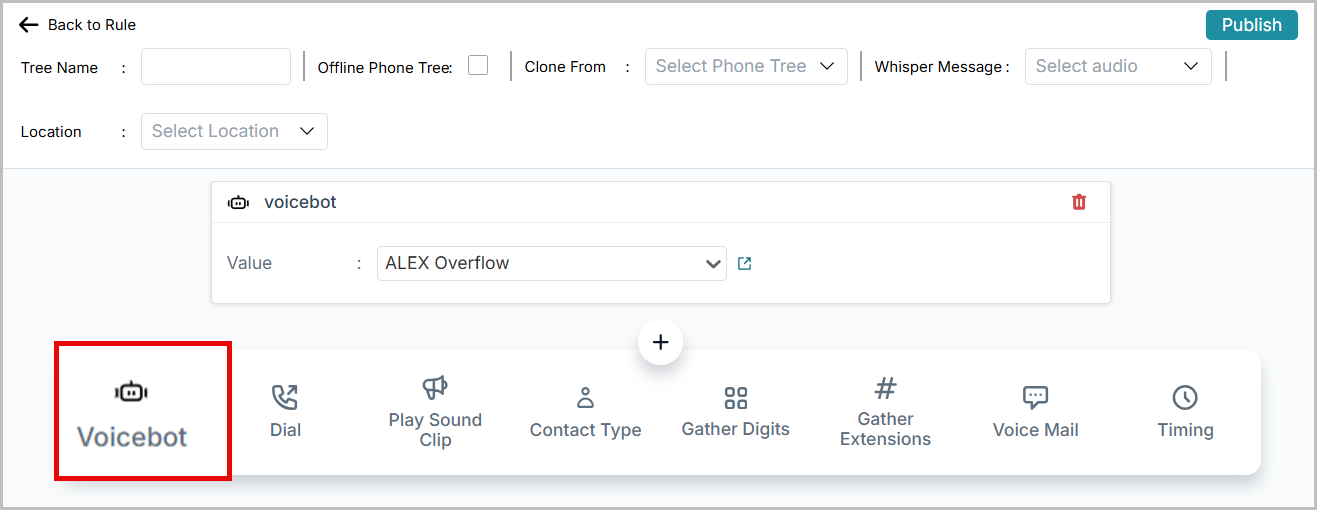
A new bot option is now available in the Phone Tree settings.
Admins can select a specific voicebot from the list to route incoming calls directly to that bot.
The phone tree location and the virtual number location can be different from the bot’s configured location, allowing greater flexibility in call routing setups.
Bot Involved Calls in Call Logs Filter
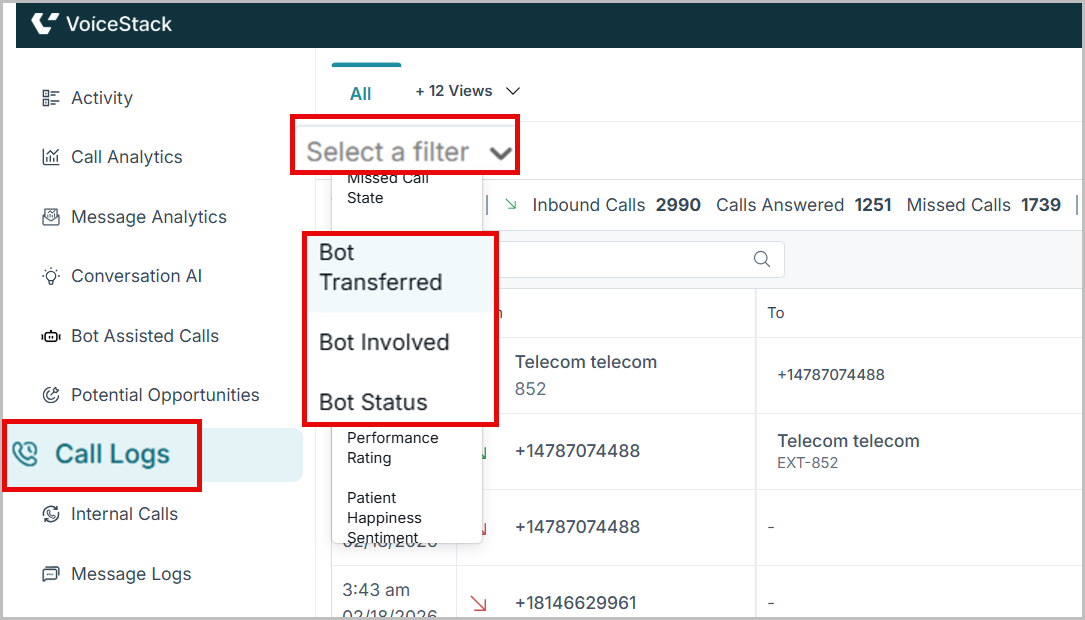
- The Filter in the Call Logs page helps you quickly narrow down call records based on bot involvement and call outcomes, making it easier to analyze bot performance and call handling efficiency.
Available Filters:
- Bot Involved: (True / False) Filter calls based on whether a bot participated in the interaction.
- Bot Name: View calls handled by a specific bot.
- Bot Transferred: Identify calls that were transferred from a bot to an agent.
- Bot Call Status: Refine results based on the outcome of the bot interaction:
- Fulfilled: Bot successfully completed the caller’s request.
- Unfulfilled: Bot interactions ended without completing the request.
- Transfer Answered: Call was transferred from the bot and answered by an agent.
- Transfer Missed: Call was transferred from the bot but not answered.
- Bot Missed: Bot did not engage with the call.
Conversation History & Winlet
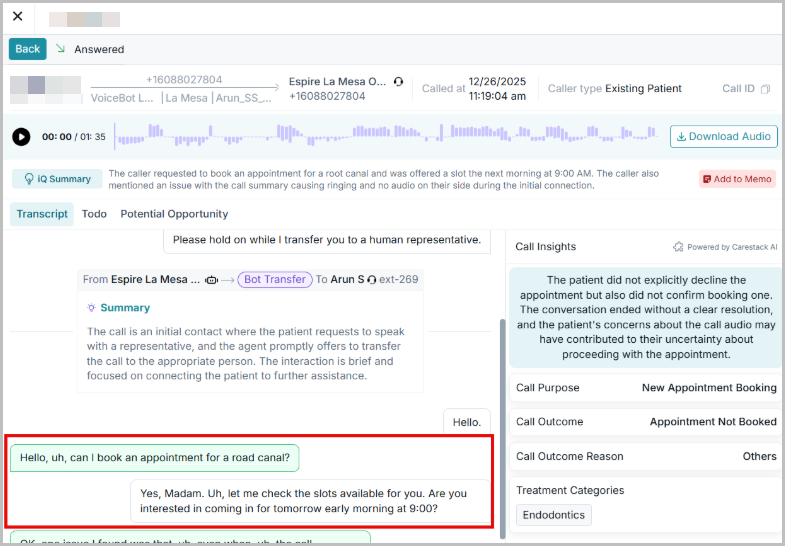
For bot-involved calls, conversation history provides a complete view of the entire interaction journey. It shows the:
- Bot–patient transcript- Captures everything exchanged during the automated interaction
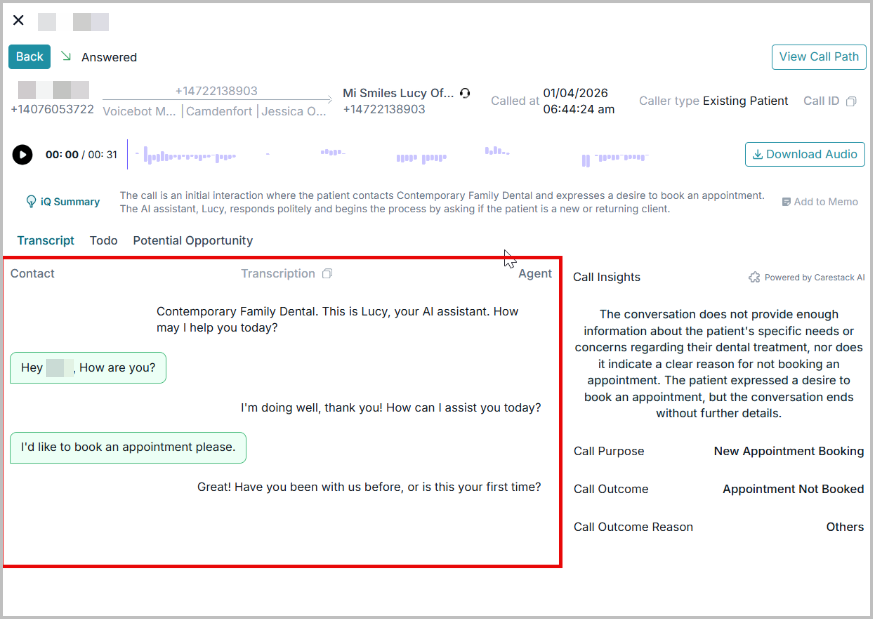
- Bot transfer summary (if applicable): Clear visual indicators are used throughout the conversation to highlight bot involvement and transfer points.
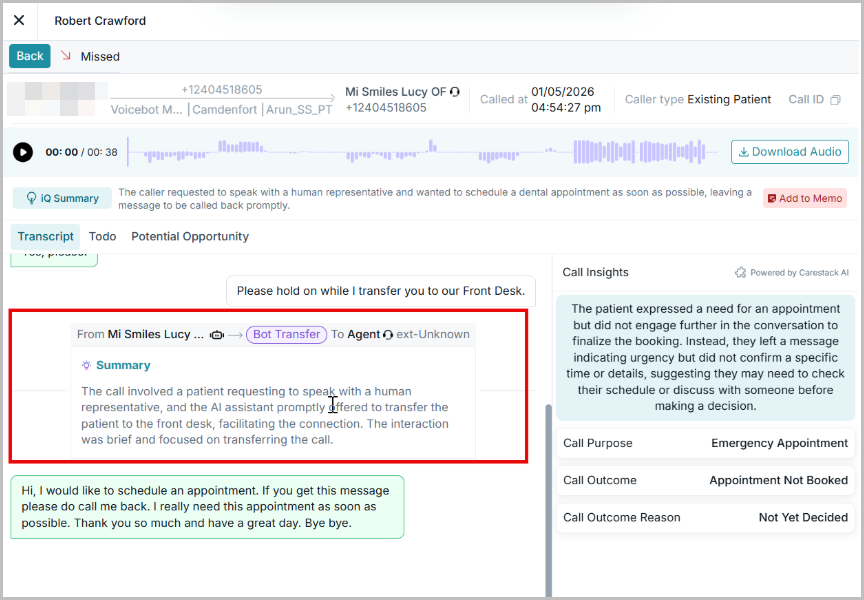
- Agent–patient transcript: For Bot transfers that get connected to an agent, the agent- patient transcript is shown in the conversation history.
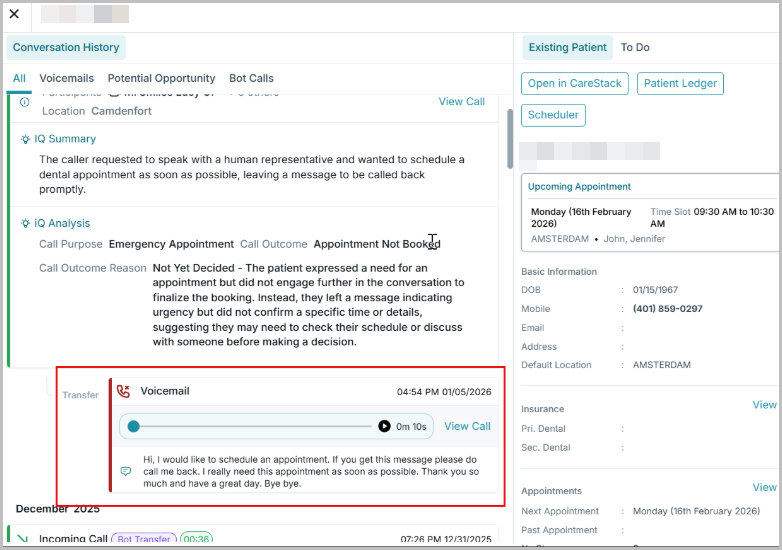
- For bot transfer calls that go to voicemail, recordings are stitched into a single recording.
Reporting & Notifications
Voicebot also supports scheduled email reports detailing:
- Bot Fulfilled calls
- Bot Unfulfilled calls
- Bot Transfer Answered
- Bot Transfer Missed
- Bot Missed calls
These reports can be sent as:
- Instant Email
- Hourly Digest
- Daily Summary (same day or next day)
How Voicebot Handles Calls
Once a voicebot answers a call, there are various scenarios that can happen. These are the various scenarios that can occur
1. Successful Handling (Fulfilled by Bot)
The bot completes the patient’s request without requiring a human agent. This appears as Fulfilled by Bot in dashboards.
2. Bot Missed
The call is redirected to a real agent in cases where the bot is down or unavailable.
3. Transfer Case
Certain cases cannot be handled by a bot, which includes detailed treatment plans, insurance explanations, etc. Such scenarios warrant a transfer case. A Transfer Case is where Voicebot transfers the call to a live agent.
4. Transfer Missed
The voicebot transferred the call to an agent, but the agent missed the call.
5. Unfulfilled by Bot
The bot handled the call but failed to fulfill the intent, and the transfer to an agent also did not take place.
All calls involving the Voicebot are marked with a bot icon,regardless of outcome.
FAQs
1. What happens if Voicebot is down?
If the Voicebot is unavailable, the call automatically redirects to a real agent. If no agent or voicemail is configured, the call may be marked as missed.
2. Why does the call show the wrong location in analytics?
Analytics use the virtual number’s location, not the bot’s location. Ensure the correct location is mapped to the number.
3. What does “Unfulfilled by Bot” mean?
This happens when:
- Bot Status = Answered
- Call Outcome = Unfulfilled
The bot engaged with the caller but could not complete their request.
4. How do I know if a call was transferred by the bot?
In the Activity tab or call logs, use the filter Actions: Bot Transfer to view all calls the bot transferred.
5. Does deleting a bot affect existing call logs?
No. Deleting a bot does not remove past logs or analytics. It only deletes the bot configuration.
The VoiceBot configuration screen allows administrators to create, manage, and update bots easily. The configuration controls ensure the bot always reflects the latest operational needs of the dental practice.
Support / Contact
Need further help? Contact support@voicestack.com or call 407-833-6436.
Was this article helpful?
That’s Great!
Thank you for your feedback
Sorry! We couldn't be helpful
Thank you for your feedback
Feedback sent
We appreciate your effort and will try to fix the article