Benefits
- Centralized view of all calls, voicemails, and VoiceBot interactions.
- Quick insights with AI-generated call summaries.
- Easy identification of pending follow-ups and actions.
- Fast filtering by location, extension, and time period.
- Clear visibility into call outcomes and conversion signals.
Module: Agent App
TABLE OF CONTENTS
- Topics Covered:
- Activity Filters & Navigation
- Managing the Missed Activity
- VoiceBot Management
- To Do AI for Admins
- Admin Tips
- Support
Viewing Your Activities
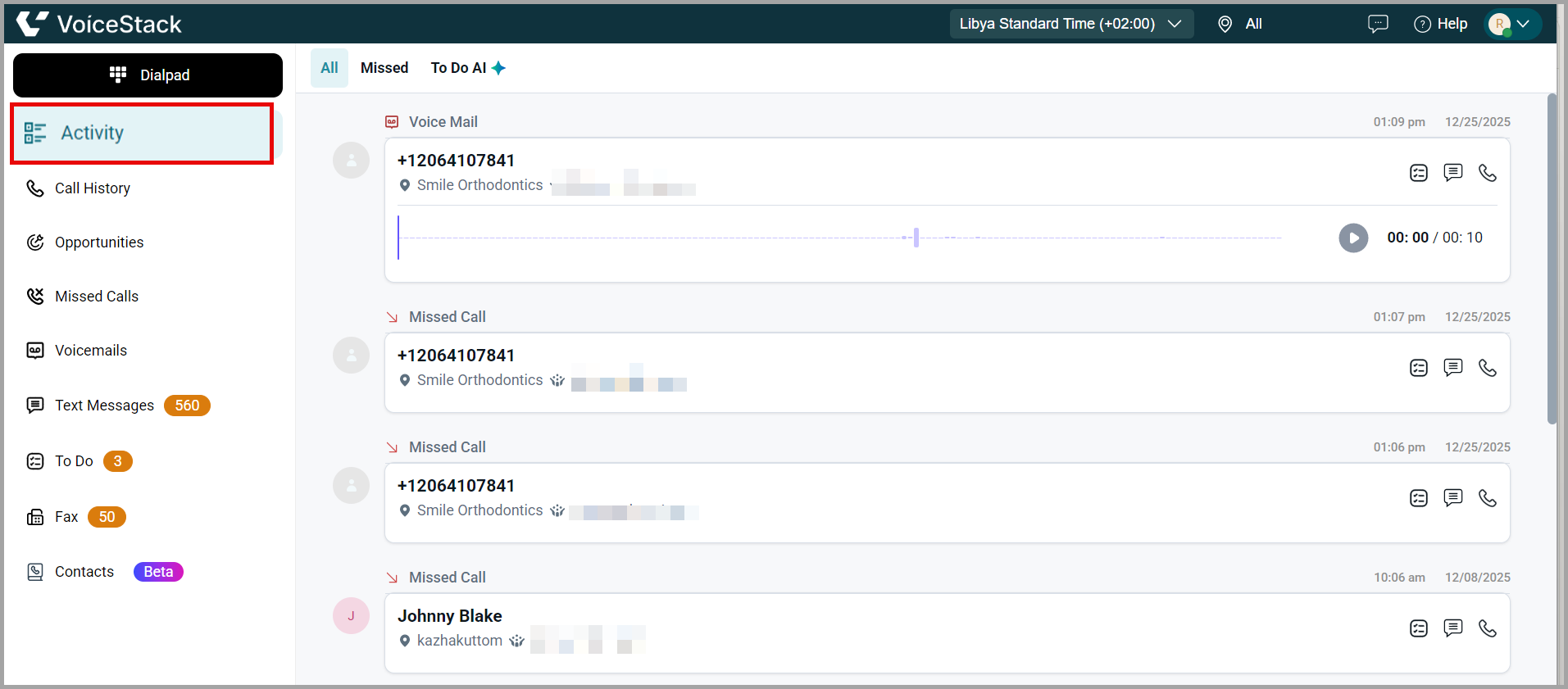
1. Select the Activity section.
When you open the Activity Page, you will see a chronological list of your recent activities, including calls, voicemails, and AI‑generated reminders.
Filter Activities
Activity filters help you quickly view and manage different types of activities. You can filter to see all activities, only missed calls, or AI-generated To-Dos.
Available Filters:
All: Displays every activity, including calls, messages, and AI suggestions.
Missed: Shows only the calls that were missed and require follow-up.
To Do AI: Displays tasks automatically generated by VoiceStack AI based on call transcripts or activity analysis.
Review Missed Calls
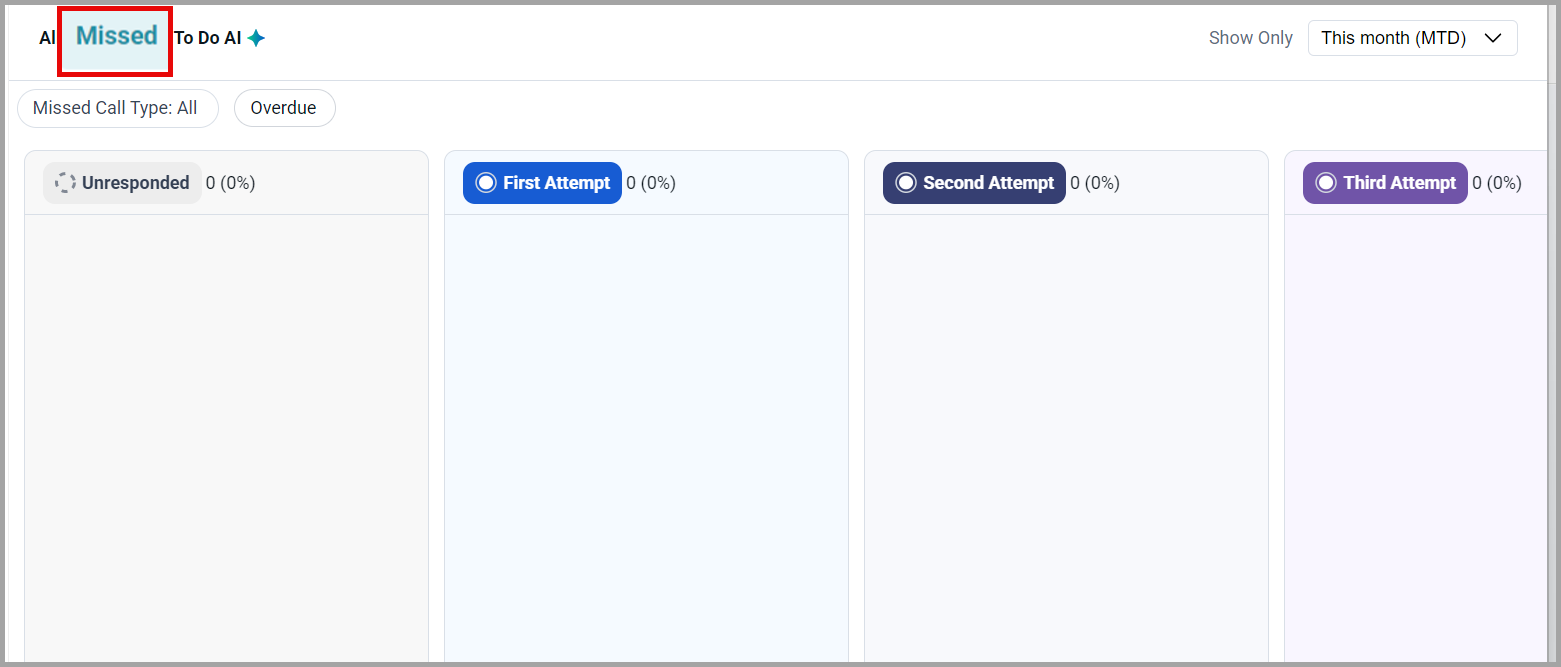
1. Use the Missed Call Type dropdown to filter your view by All, Missed Calls, or Voicemails.
2. To quickly identify urgent follow-ups, switch on the Overdue toggle to display only the records that have exceeded their response timeframe.
3. The missed dashboard categorizes missed calls into columns based on your follow-up progress. As you attempt to reach back out to a contact, the record moves through the following stages:
Unresponded: New missed calls that have not yet been addressed.
First Attempt: You have made one outbound call attempt to the contact.
Second Attempt: A second follow-up attempt has been made.
Third Attempt: A third follow-up attempt has been made.
Responded: The contact has been successfully reached, or they have called back and connected with an agent.
Ignored: Calls that have been manually moved here because they do not require further follow-up (e.g., spam or duplicate entries).
Use To Do AI
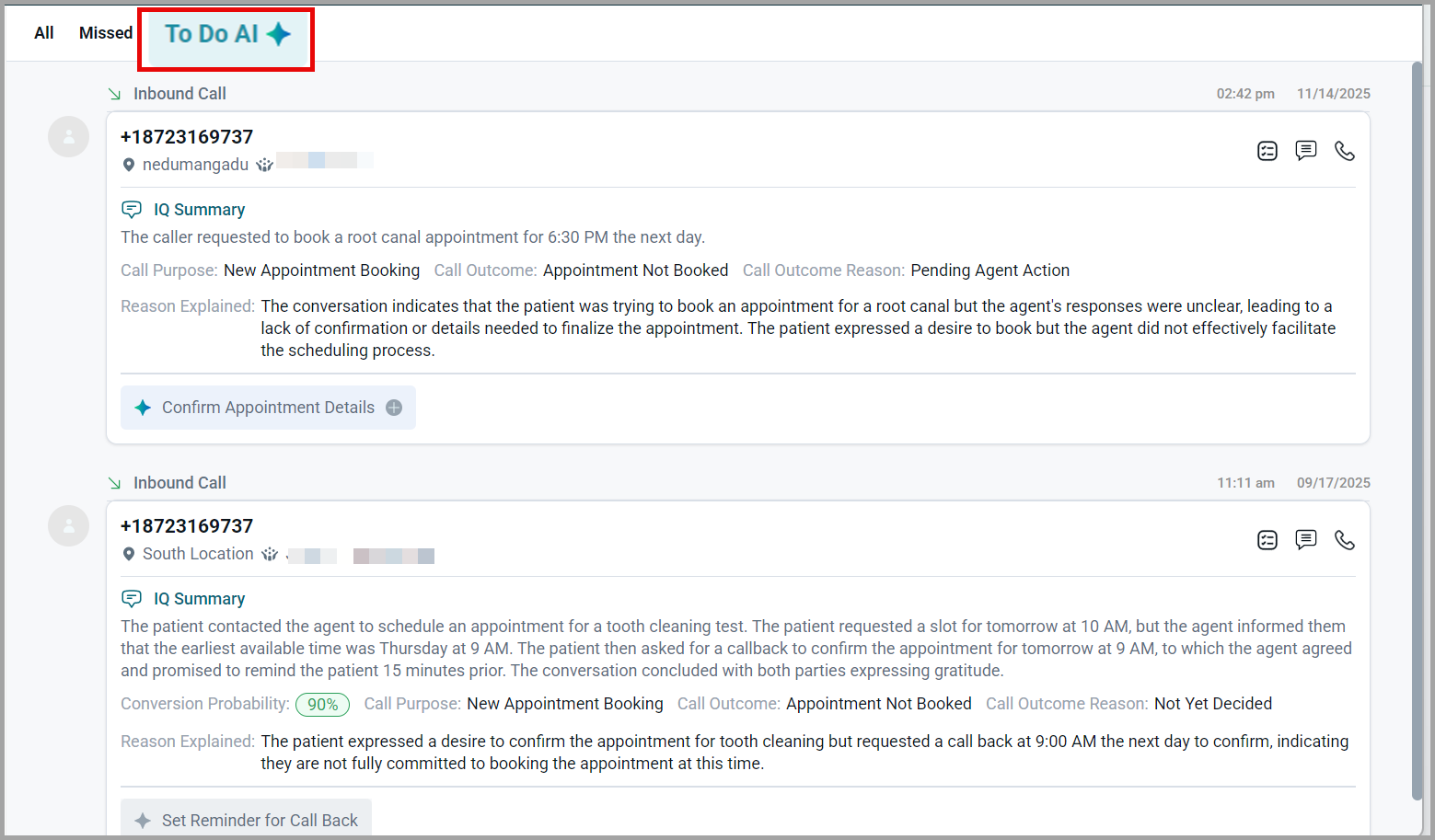
The To Do AI feature helps you to prioritize and manage follow-ups efficiently. It automatically analyses inbound and outbound calls, identifies pending actions such as appointment confirmations or callbacks and suggests next steps.
Direct Follow-up: Just like the standard activity feed, the AI-prioritized list allows you to Listen to Voicemails, Send Text Messages, or Call Back directly from the task card.
Contextual Insights: Each AI-suggested task includes relevant details such as the contact name, department, and time of the missed interaction so you have full context before reaching out.
Check Your Team’s Availability
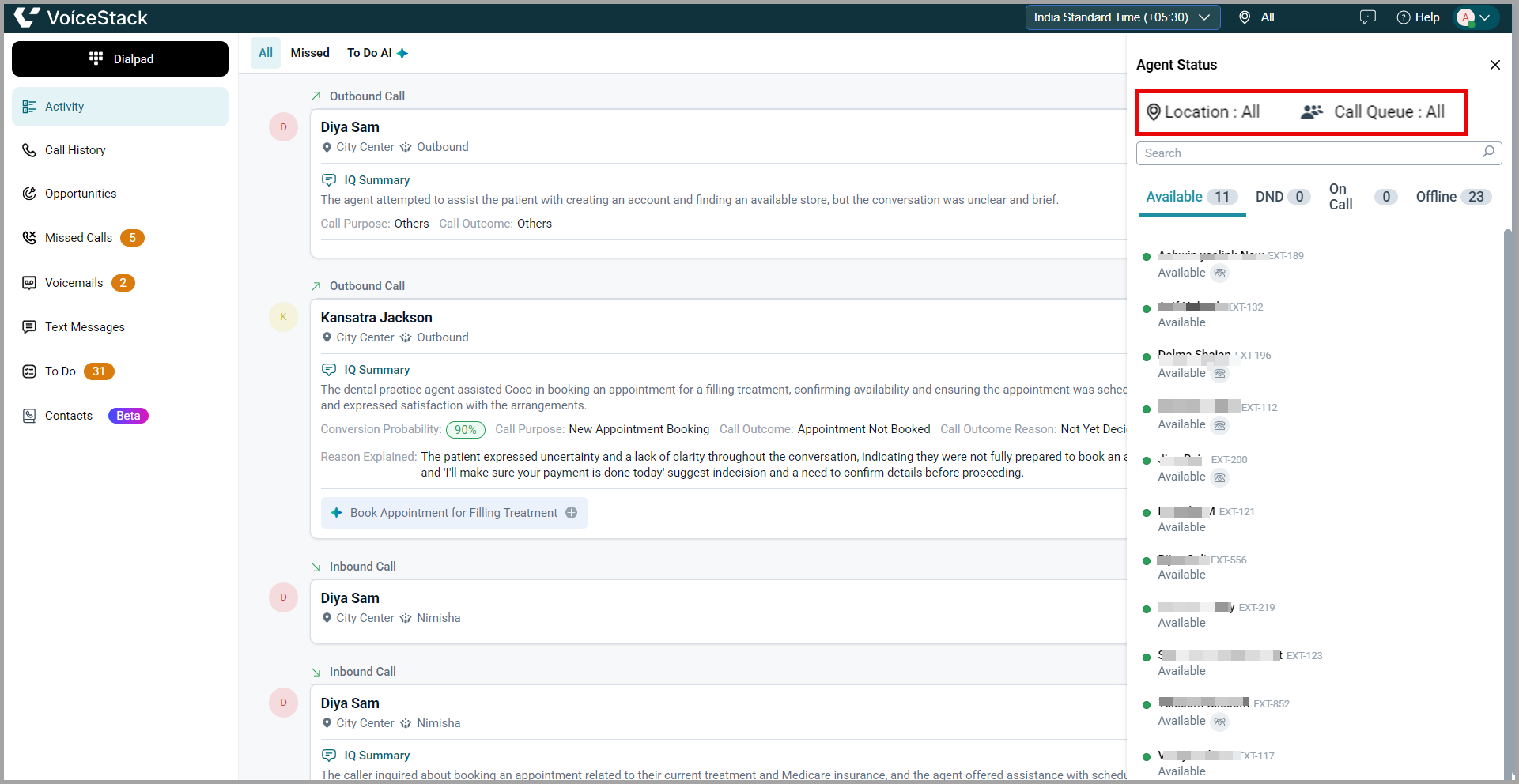
- The Agent Status view lets you see your team’s real-time availability at a glance.
- Filter agents by Call Queue or by location to quickly find relevant users.
- View statuses such as Available, On Call, DND, and Offline to assess coverage, reduce clutter, and improve team coordination and call handling.
Tips for Agents
Review To Do AI tasks at the start of every shift.
Prioritize actions marked as Pending Agent Action first.
Use AI summaries to quickly understand call context.
Set callbacks or reminders immediately after each call.
Update appointment details as soon as confirmation is received.
Best Practices
Act on AI-suggested follow-ups within the same day.
Always verify patient details before confirming appointments.
Use notes to capture important context for future reference.
Clear completed tasks regularly to keep the list organized.
Treat To Do AI as your daily checklist to avoid missed bookings.
Module: Admin App
Topics Covered:
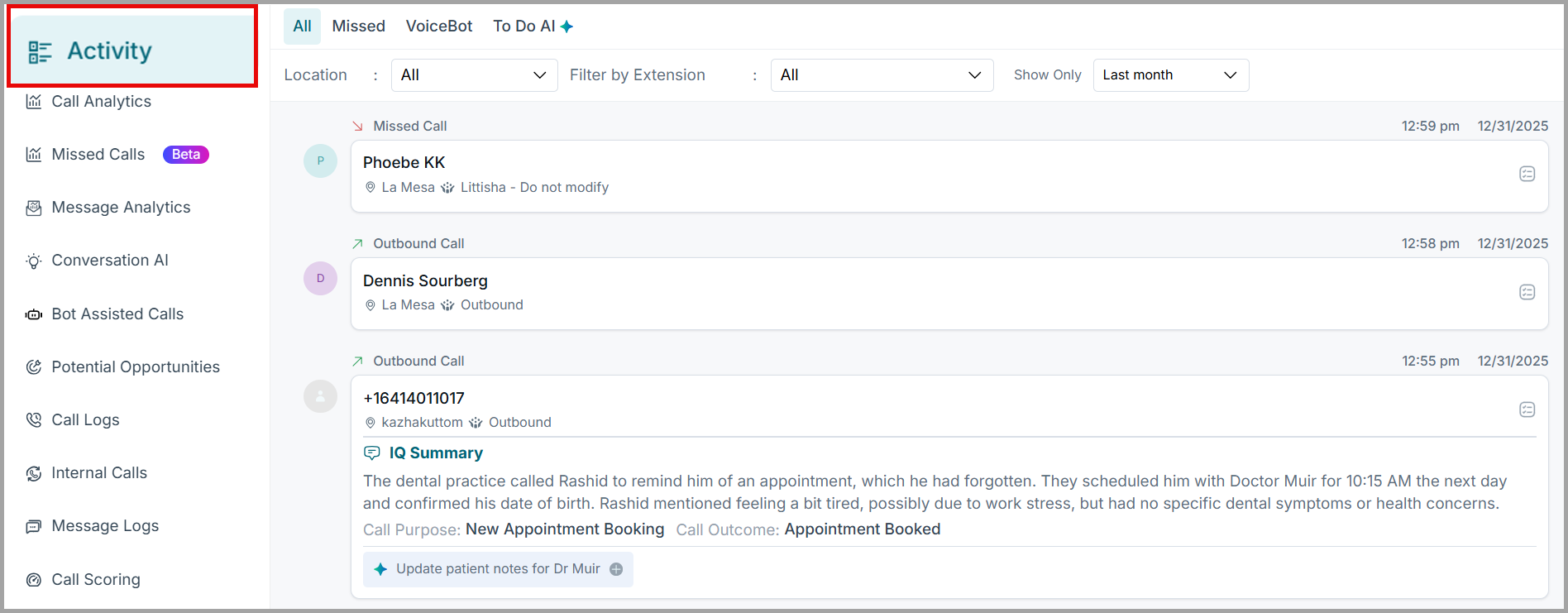
Activity Filters & Navigation
Admins can oversee global activity through specialized filters at the top of the page:
Location & Extension: Filter records by specific office locations or individual agent extensions to monitor performance.
Date Range: Toggle between preset timeframes like "Last month" or custom ranges to review historical data.
Tabbed Views: Quickly switch between All activity, Missed calls, VoiceBot interactions, and To Do AI tasks.
Managing the Missed Activity
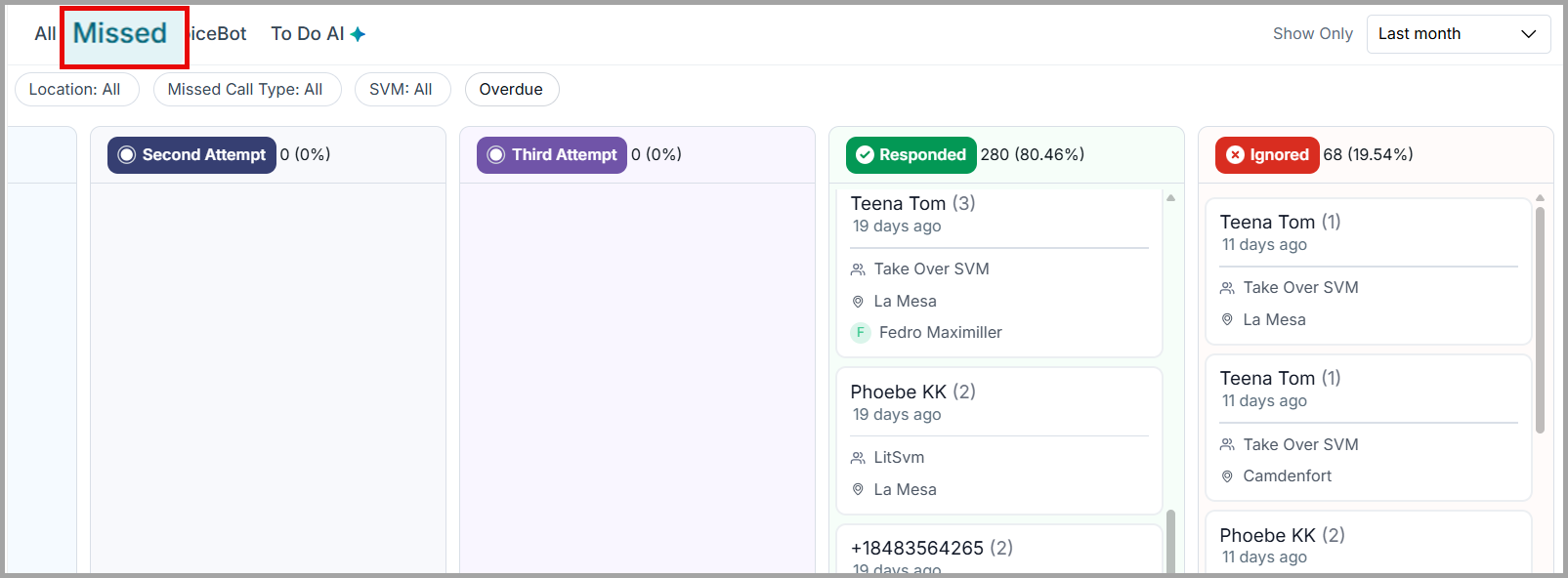
The dashboard uses a Kanban-style layout to categorize missed calls by their current status:
Unresponded: New missed calls that have not yet been addressed by any team member.
First Attempt: A single follow-up call has been made to the contact.
Second Attempt: A second follow-up attempt has been recorded.
Third Attempt: A third follow-up attempt has been recorded.
Responded: The contact has been successfully reached, or they have returned the call and connected with an agent.
Ignored: Entries manually moved here that do not require action, such as spam or duplicate logs.
VoiceBot Management
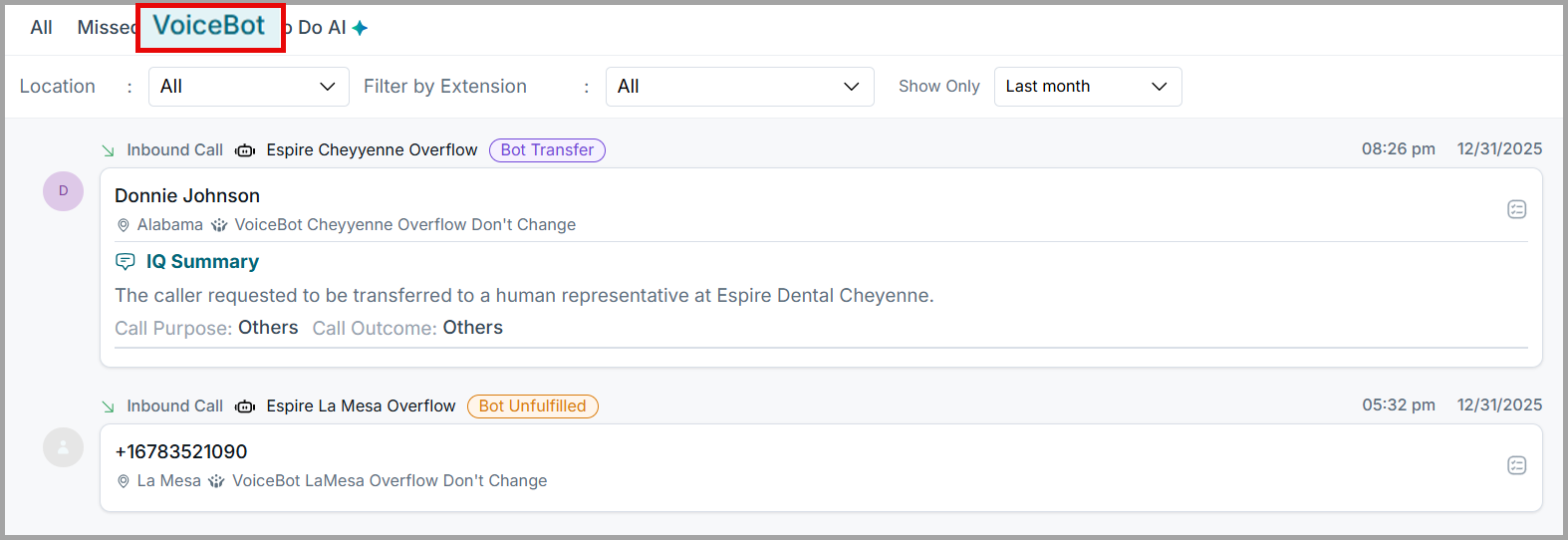
The VoiceBot tab tracks calls handled by your AI Receptionist. This view allows admins to audit how the AI is triaging calls and where manual intervention might be required.
IQ Summaries: Provides a concise, AI-generated overview of the caller's intent (e.g., "New Appointment Booking") and the specific outcome of the interaction.
Bot Status Tracking: Identifies calls as Bot Unfulfilled if the interaction did not reach a final resolution or Bot Transfer if the AI moved the caller to a live agent.
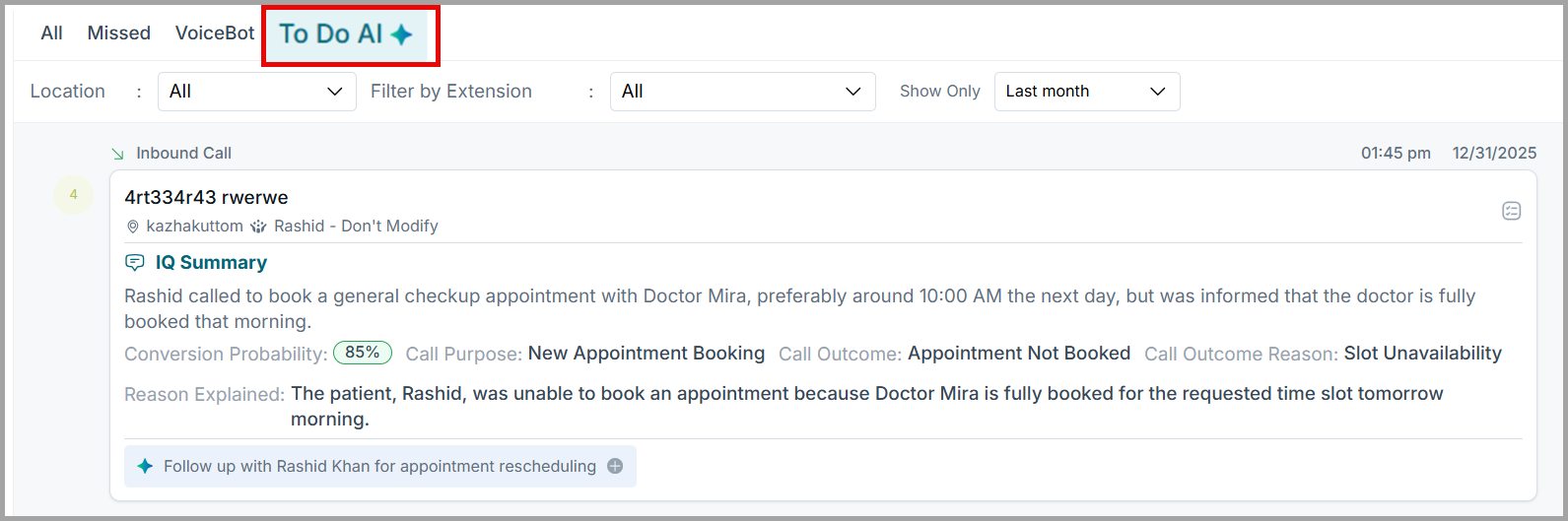
Conversion Probability: Displays a percentage indicating how likely the caller is to book an appointment, helping you prioritize follow-ups for high-intent leads.
Interaction Detail: View the specific department and tracking numbers involved in the bot conversation.
To Do AI for Admins
The To Do AI tab acts as an intelligent command centre, surfacing high-priority tasks that require attention across the entire practice or specific locations.
Intelligent Prioritization: Automatically identifies missed calls or bot interactions with high conversion potential that need an immediate callback.
Pending Agent Actions: Specifically flags requests where a patient opted to leave a message or requested a follow-up from a team member.
Reason Explained: For every unfulfilled opportunity, the AI explains why the task was created (e.g., "The patient was unable to book because Doctor Mira is fully booked").
One-Click Resolution: Provides quick action buttons like Follow up with the patient to instantly initiate a callback or message directly from the activity feed.
Admin Tips
Spot Check: Use IQ Summaries for quick QA instead of listening to full calls.
Priority Focus: Target leads with 80%+ Conversion Probability first.
Performance Audit: Filter by Location to see which office has the most unfulfilled calls.
Queue Health: Ensure agents move non-actionable calls to Ignored to keep data accurate.
Support
Mail us at support@voicestack.com or call 407-833-6436.
Was this article helpful?
That’s Great!
Thank you for your feedback
Sorry! We couldn't be helpful
Thank you for your feedback
Feedback sent
We appreciate your effort and will try to fix the article