TABLE OF CONTENTS
- Accessing the Feature
- Dashboard Walkthrough
- Filters and Controls
- Use Cases
- Best Practices
- Support / Contact
Accessing the Feature
- Log in to the VoiceStack Admin App.
- Navigate to Bot Assisted Calls.
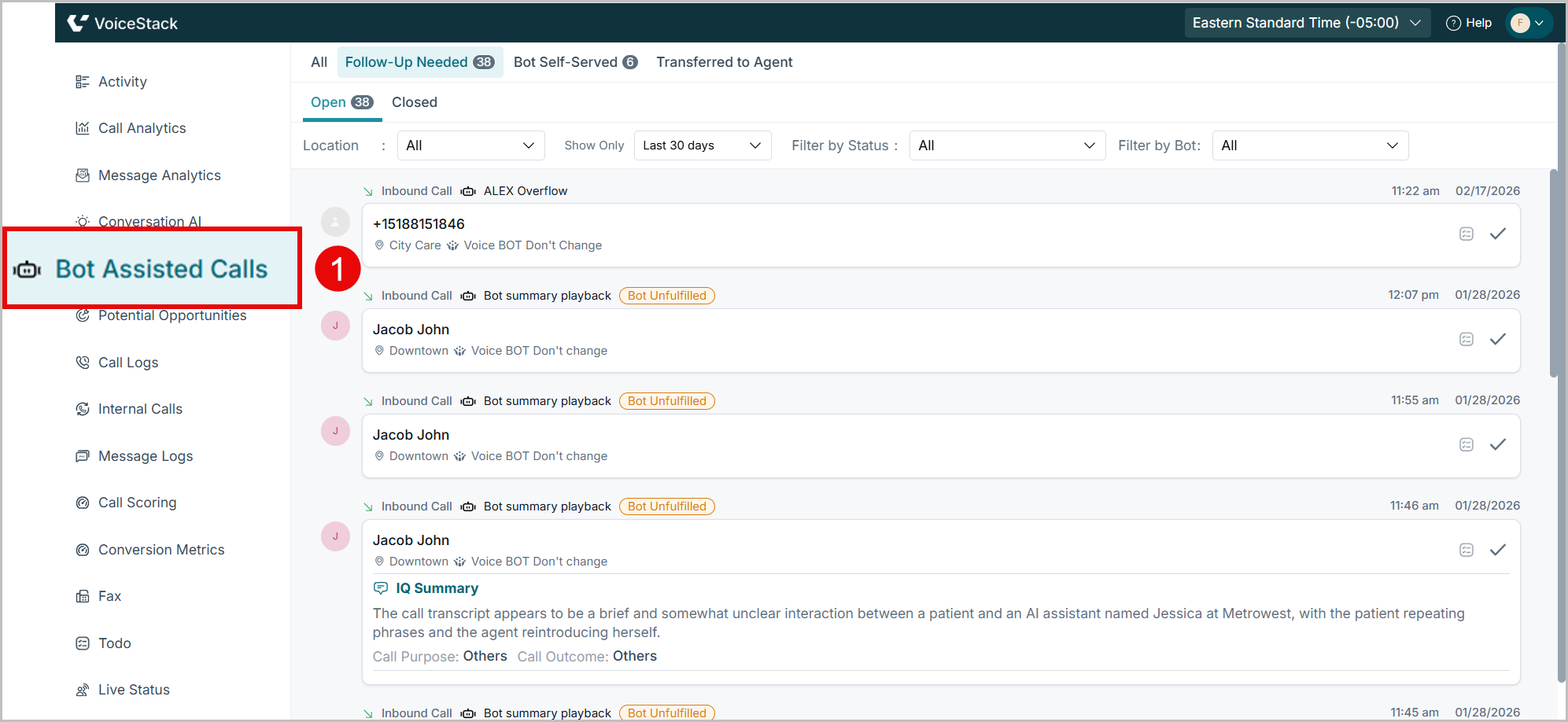
Dashboard Walkthrough
Let’s walk through some of the features of the Bot-Assisted Calls dashboard:
A. Call Cards
The dashboard comprises call cards, indicating bot calls that have taken place.
Each call card displays:
- Caller details (caller name or phone number)
- Call type (Inbound)
- Bot name
- Bot involvement status (Bot unfulfilled, Bot Missed, Fulfilled, Bot Transfer)
- IQ Summary – an AI‑generated summary of the conversation
- Conversion probability (where applicable)
- Call purpose, Call outcome, and Call Outcome Reason
- Reason Explained: This applies to calls where the appointment could not be booked or was rescheduled during the interaction.
- Recommended next action suggested by AI (for follow‑up cases)

B. Call Categories
Bot-assisted calls are grouped into three primary tabs for easier tracking:
- All: Displays all bot-assisted calls across categories for a complete overview.
- Follow-up Needed: This tab displays calls that require human attention to complete the patient journey. These calls typically carry status labels such as Bot Unfulfilled, Bot Missed, or Transfer Missed, indicating that the interaction could not be fully completed during the call.
Typical Scenarios include:
- Patient wanted to book but was busy.
- Appointment not booked due to indecision.
- The bot could not fully complete the request.
The Follow-Up Needed dashboard includes two sub-tabs:
- Open – Calls where follow-up is still pending.
- Closed – Calls where follow-up has been completed.
Once a follow-up action is marked as completed, the call automatically moves from Open to Closed.
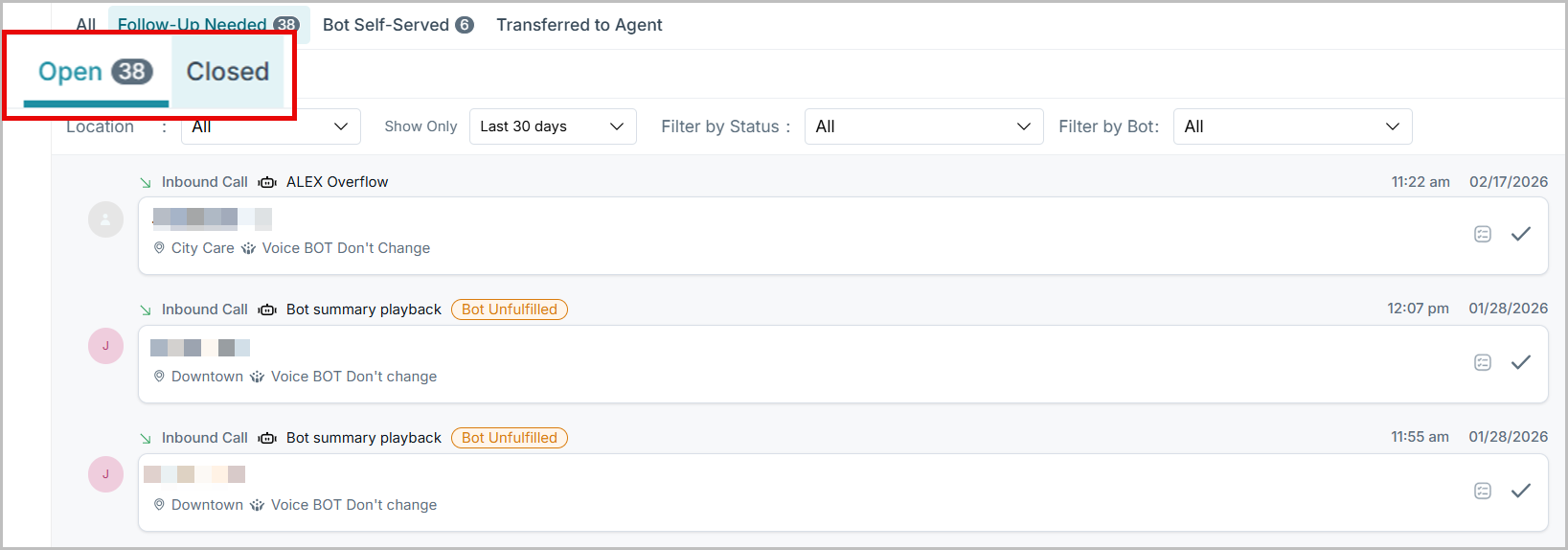
Marking a Call as Followed Up
- To mark an open call as closed, click the tick icon “Mark as followed up” on the call card.

Creating Follow-Up Tasks
You can assign a follow-up task in either of the following ways:
a) Click Create a To-do to manually assign the call as a task.
b) Click the AI-suggested task displayed below the call card to quickly create a To-do.
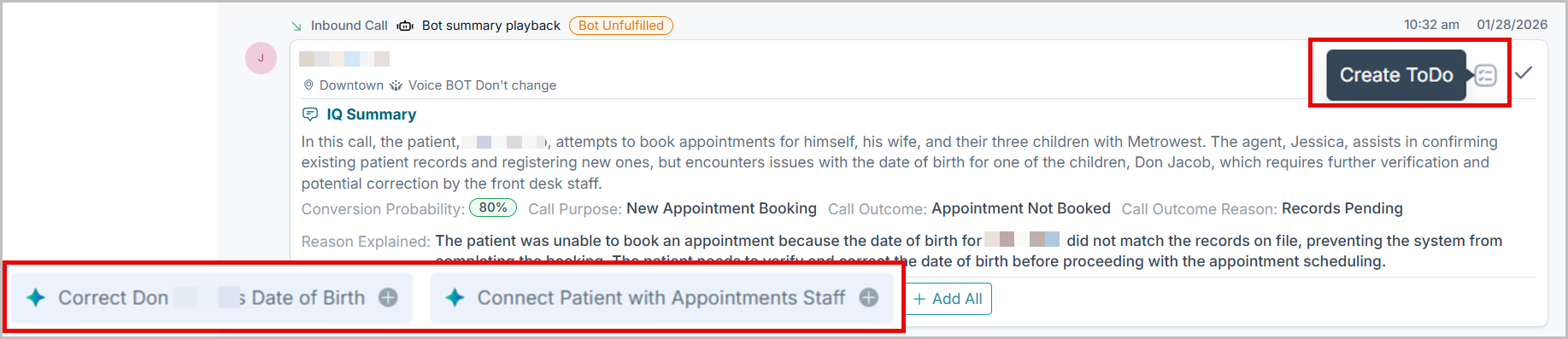
C. Bot Self-Served
This tab shows calls, appointments booked, rescheduled, confirmed, or cancelled, without human intervention.
Examples:
- General inquiries, such as Location, provider, or service information, will be answered by the bot.
- Patient questions resolved without escalation.
What this tells you:
- How effectively the bot is handling routine calls.
- Reduction in front desk workload.
- Self‑service success rates.
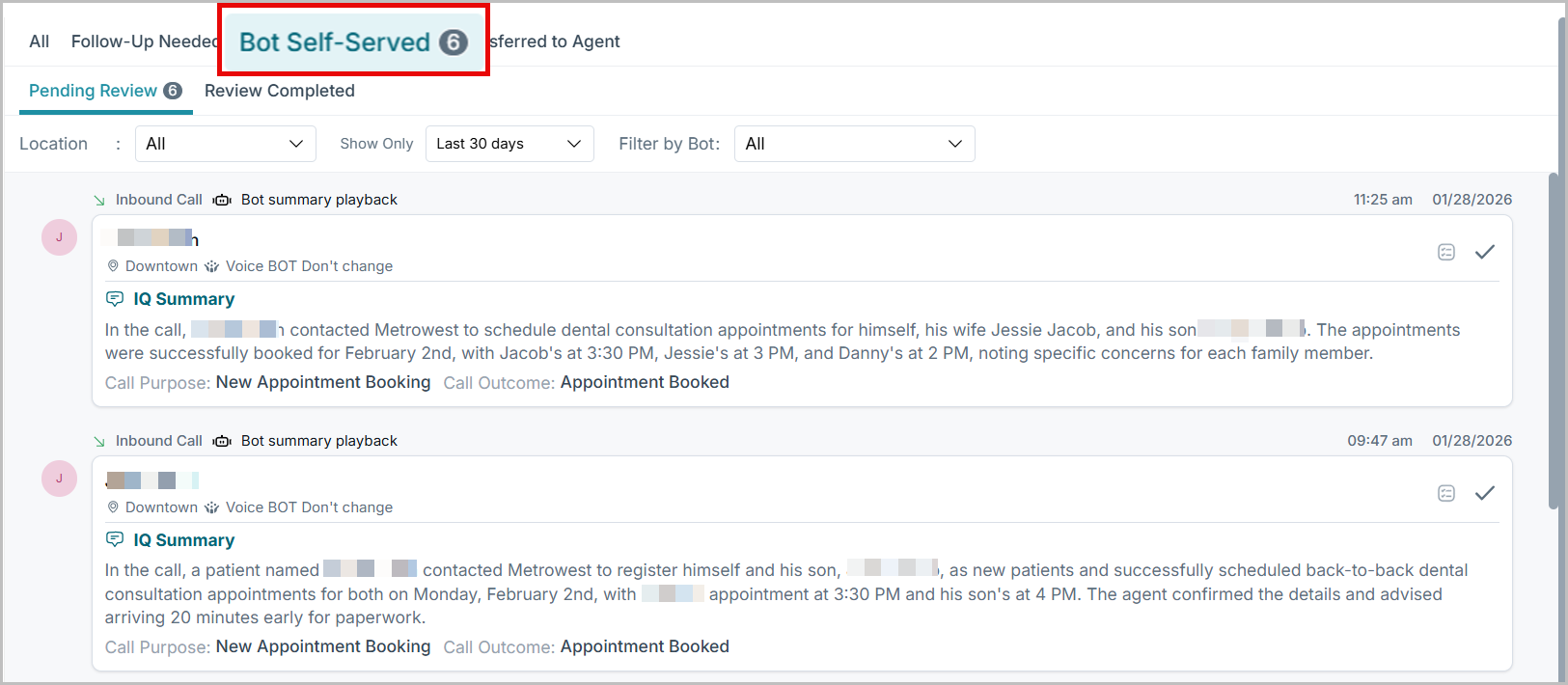
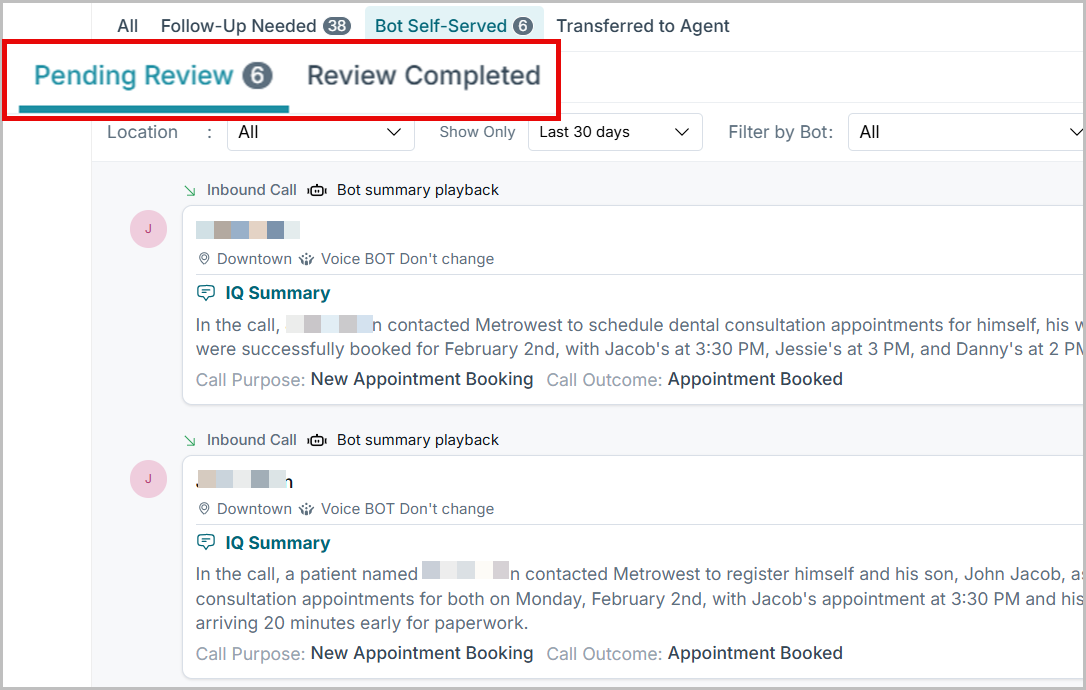
Calls are initially populated in the Pending Review section for quality checks.
Once a call is reviewed and marked accordingly, it is moved to the Review Completed tab.
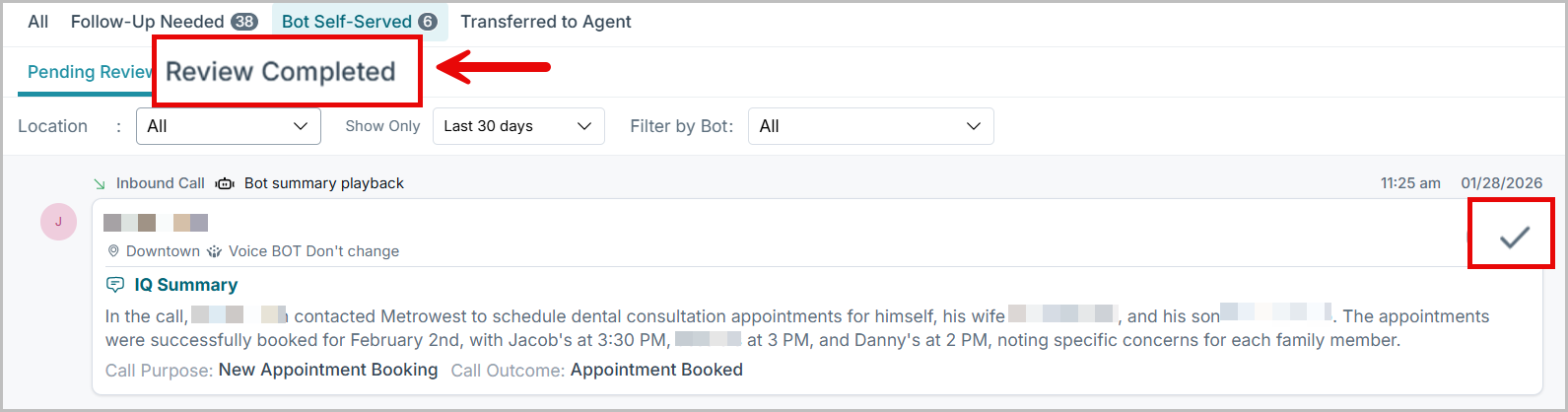
Marking a Call as Review Completed
- To mark a call as review completed, click the Review icon on the call card, as shown below.
- The item will be moved to the Review Completed tab.
D. Transferred to Agent
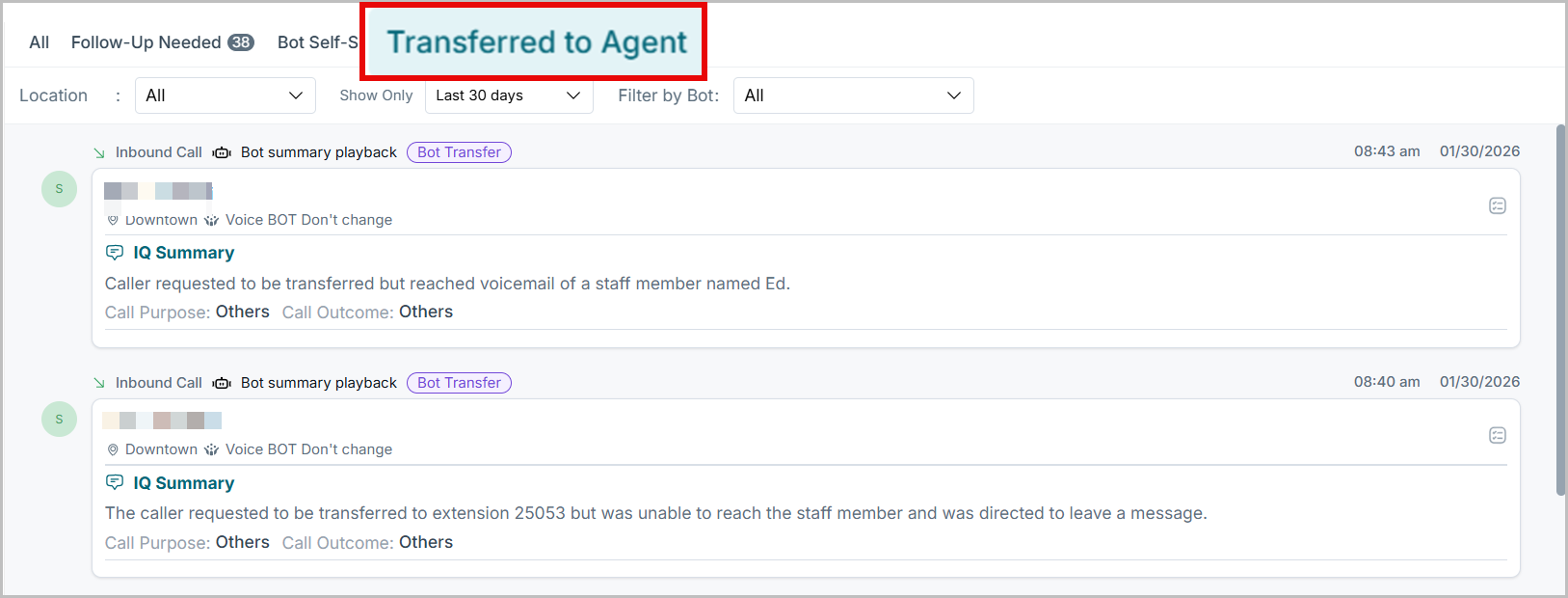
This tab contains calls where the Voicebot handed the conversation over to a live agent.
Common reasons for transfer:
- Patient explicitly requested a human agent.
- Inquiries regarding insurance.
- Complex booking or clarification required.
- Multi‑step or sensitive inquiries.
From the call cards, you will get the following info:
- Summary explaining why the transfer occurred.
- Final call outcome after agent involvement.
This helps teams understand where human support is still essential.
Filters and Controls
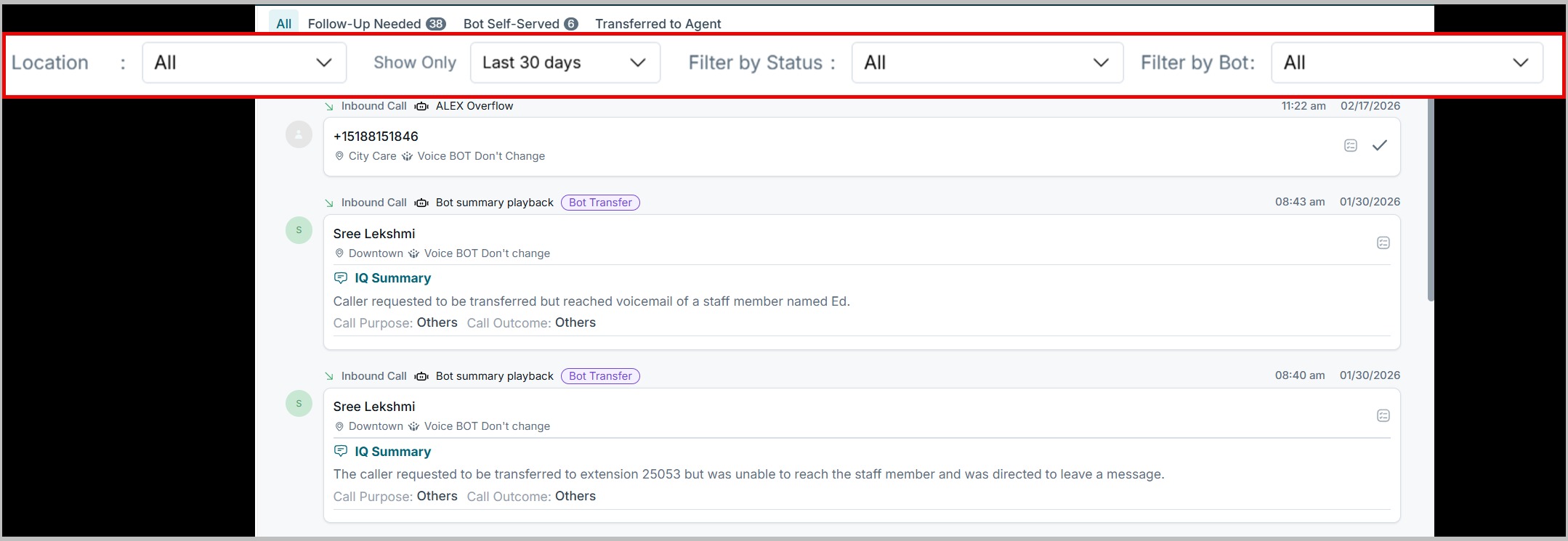
Use the filters at the top of the screen to narrow down calls:
- Location – View calls by clinic location.
- Show Only – Filter by time range (e.g., Last 30 days).
- Filter by Status – Focus on open or closed follow‑ups.
- Filter by Bot – Analyze the performance of a specific bot.
These filters help managers quickly find relevant calls and trends.
Use Cases
- Monitor voicebot performance across locations.
- Identify missed or incomplete patient interactions.
- Prioritize high-value follow-ups using conversion probability.
- Improve automation by analyzing transfer patterns.
Best Practices
- Review Follow‑Up Needed calls daily to maximize conversions.
- Monitor Bot Self‑Served calls to ensure information accuracy and quality.
- Analyze Transferred to Agent calls to identify automation gaps.
- Use conversion probability to prioritize high‑value follow‑ups.
Support / Contact
Need further help? Contact support@voicestack.com or call 407-833-6436.
Was this article helpful?
That’s Great!
Thank you for your feedback
Sorry! We couldn't be helpful
Thank you for your feedback
Feedback sent
We appreciate your effort and will try to fix the article