TABLE OF CONTENTS
- How to Access Missed Calls Analytics
- Dashboard Overview
- Missed Call Tab
- Filters in Missed Call Tab
- Missed Call Analytics: Dashboard Metrics Explained
- Use Cases
- Benefits
- Support / Contact
Module: Admin App
How to Access Missed Calls Analytics
- From the side panel in the VoiceStack admin app, go to Missed Calls.
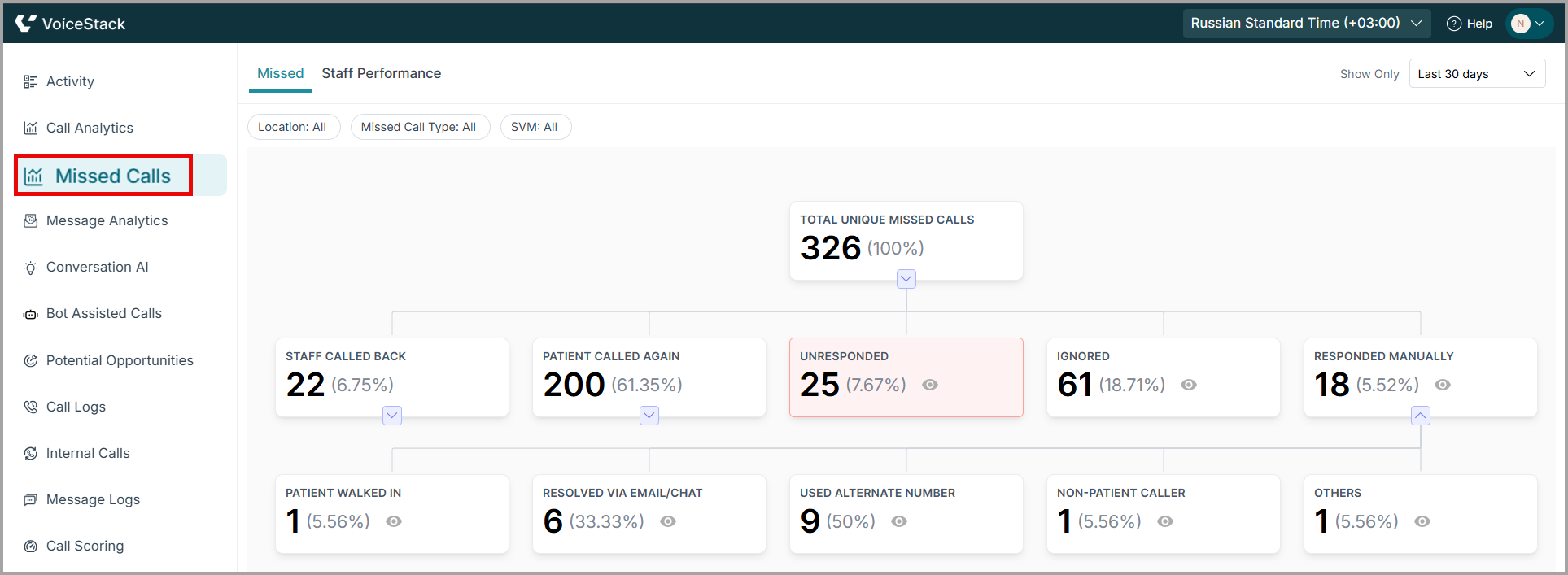
Dashboard Overview
The Missed Calls dashboard has two tabs:
- Missed Call Panel: Provides a detailed drilldown of the total unique missed calls that occurred within the selected time range
- Staff Performance: Displays agent-level performance metrics related to missed call handling. It includes details such as the number of missed calls assigned, callbacks made, calls connected or not connected, and outcomes like booked or not booked.
To learn more about Staff Performance, click here.
Missed Call Tab
The Missed Call Tab features a drill-down tree view that visually represents how total unique missed calls progress through different stages — from the initial missed call to callbacks, and final call outcomes.
Users can see both the number of calls and the total percentage at each stage. This helps quickly understand the distribution of missed calls and identify response gaps. Users can also track how many missed calls were successfully converted and how many callbacks were made, helping assess team effectiveness.
| Tip: Clicking on any node in the tree expands the view, allowing deeper insight into subcategories. |
Filters in Missed Call Tab
The Missed Call Panel allows users to filter and analyze missed call data by specific parameters.
Filter | Description |
| Location | Select the branch/site to view location-specific missed calls. |
| Missed Call Type | Choose between All, Missed Call, and Voicemail. |
| SVM | Filters call based on the shared voicemail box. |
| Time Range (Show Only) | Select the required date range. |
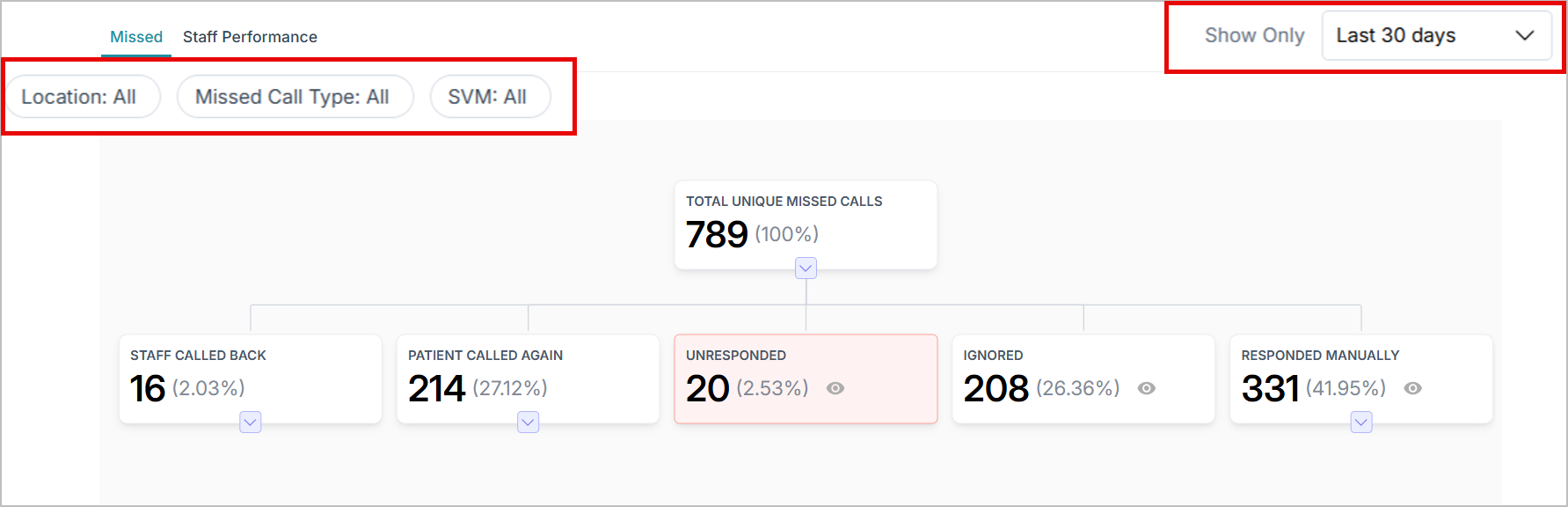
| Note: The number of unique missed calls displayed in the Drill-Down Tree View will change based on the selected SVM (Shared Voicemail) and Location filters. |
Missed Call Analytics: Dashboard Metrics Explained
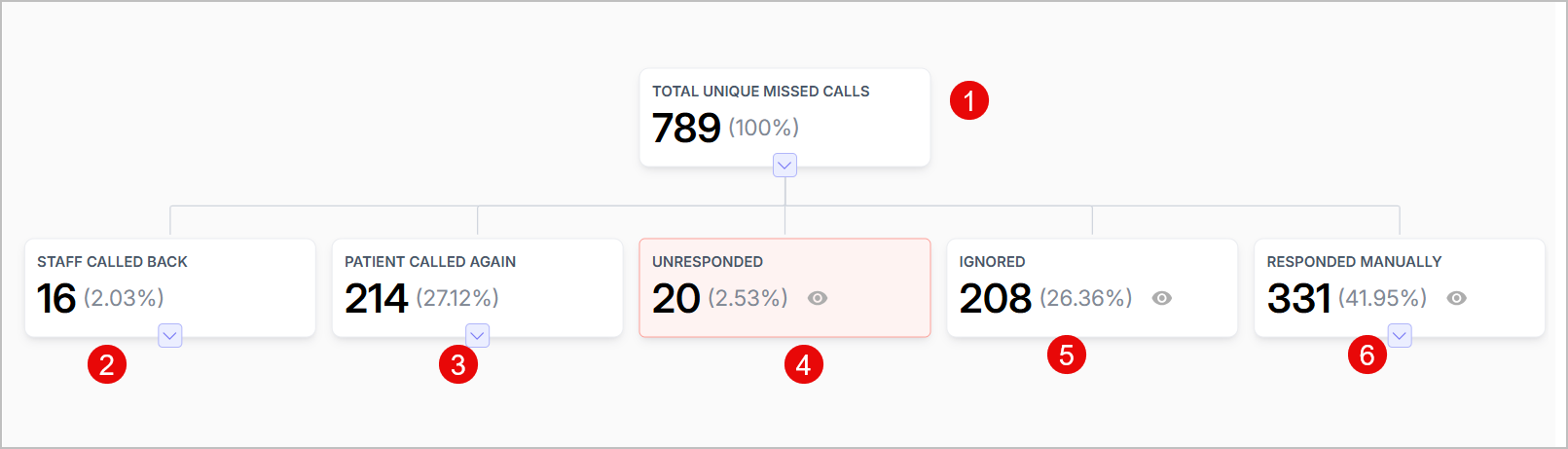
1. Total Unique Missed Calls
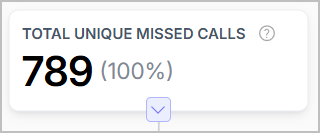
Displays the total count (and percentage) of unique missed callers within the selected time range. Multiple missed call attempts by the same patient are recorded as one unique missed call until they are successfully connected with an agent.
| Note: Missed call is inbound call that was not answered by an agent. Unique Missed Call refers to multiple missed calls from the same patient are counted as one unique missed call until the patient is successfully connected with an agent. |
For example, if a patient calls twice and the agent later calls back, it is treated as one unique missed call. Further, if the same patient calls again later (for example, three times) before getting another agent callback, it is counted as a second unique missed call, because it is considered a new request or purpose. In this case, the total missed calls would be five, while the unique missed calls would be two.
2. Staff Called Back
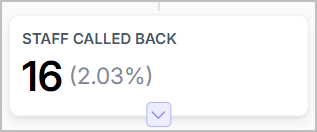
- The number of missed calls for which the agent attempted to call the patient back. This shows how many of the total unique missed calls were followed up by agents.
- Example: If there were 10 unique missed callers and your staff called back 4 of them, this metric = 4 (40%).
Click on the node to view how it is further divided based on call outcome:
1. Connected: The number of callbacks where the agent successfully reached the patient.
For these connected calls, the following outcomes can take place:
a. Booked: A new appointment is booked
b. Not Booked: No appointment is made.
c. Appt. (Appointement) Update: An existing appointment is cancelled, rescheduled, or updated.
d. Others: Any other outcome that doesn’t fall into the above categories. For example: Insurance enquiry.
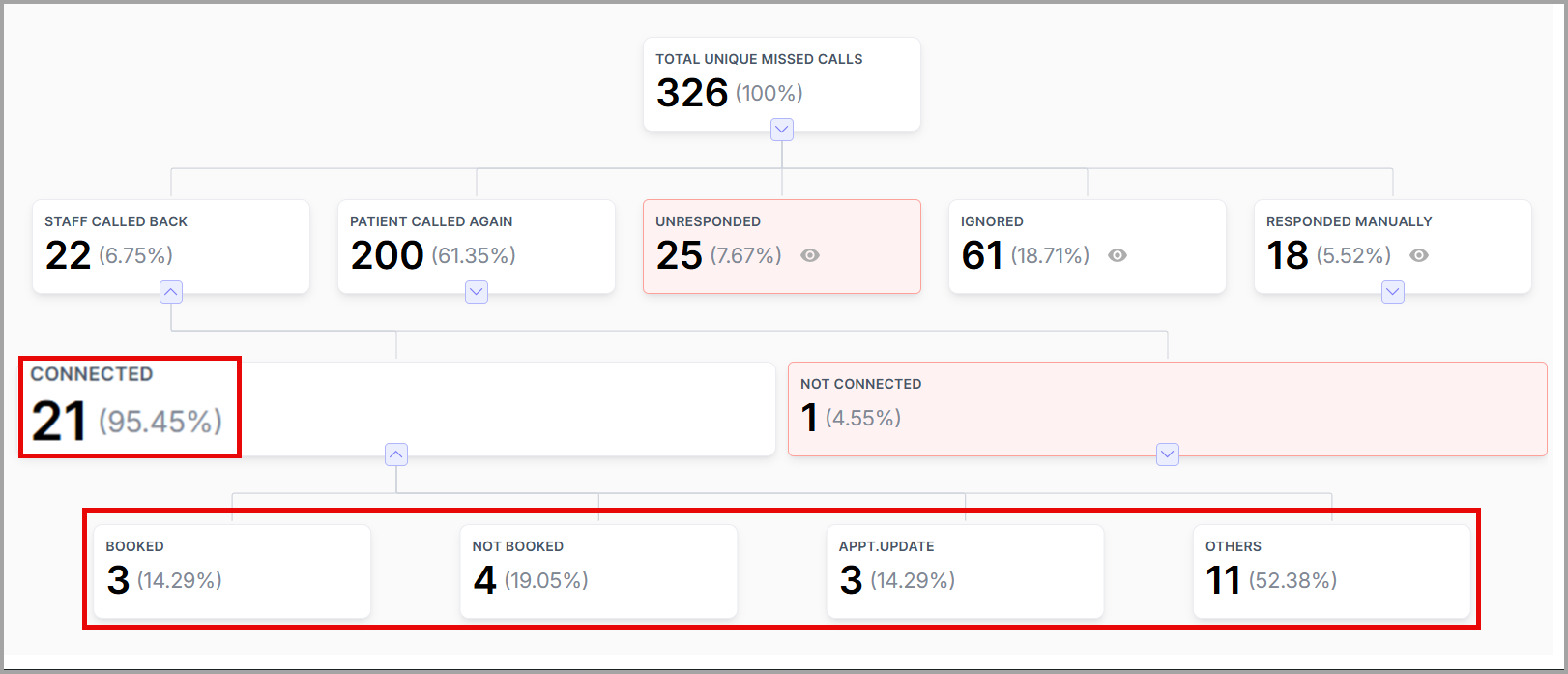
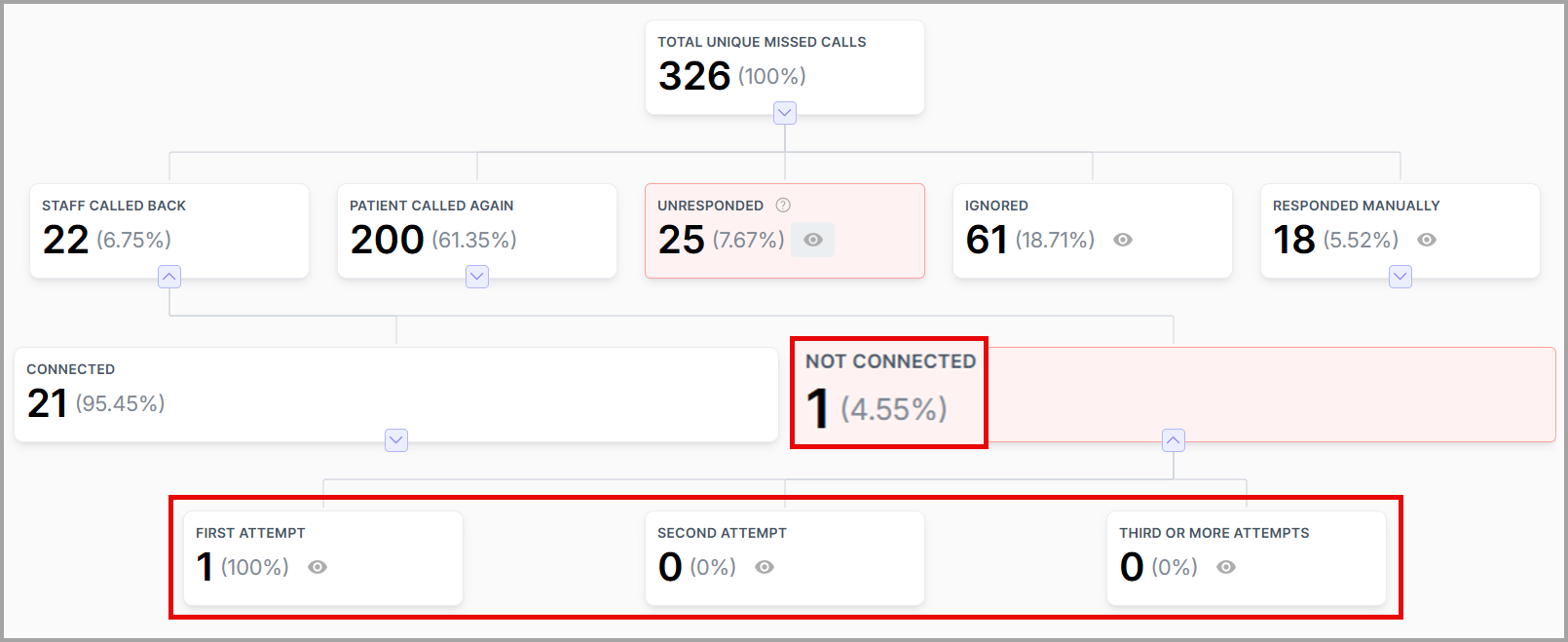
2. Not Connected: Callbacks where the agent was unable to reach or interact with the patient.
a. First Attempt: The agent tried to call back the patient once
b. Second Attempt: The agent tried to call back the patient twice.
c. Third or More Attempts: The agent tried to call back the patient three or more times.
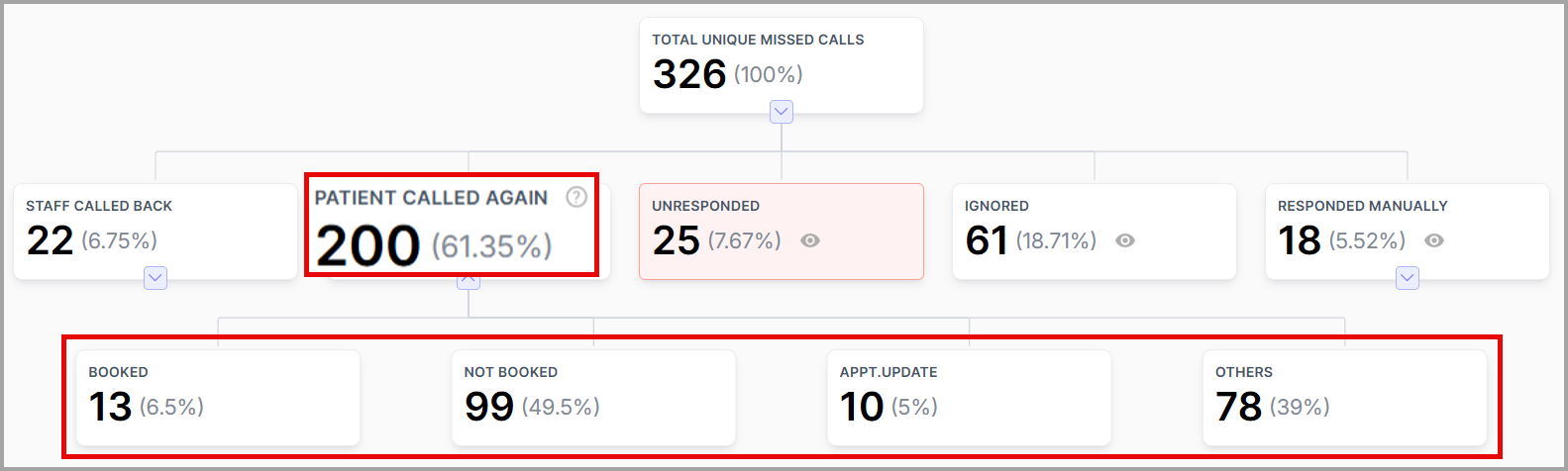
3. Patient Called Again
Counts the unique missed calls where the patient attempted to call back before any agent follow-up, and the call successfully connected with an agent.
These calls are grouped by their outcomes:
a. Booked: A new appointment is booked
b. Not booked: No appointment is made.
c. Appt. (Appointement) Update: An existing appointment is canceled, rescheduled, or updated.
d. Others: Any other outcome that doesn’t fall into the above categories. For example: Insurance enquiry
This is a useful metric to know how proactive patients are when they can’t reach you initially.
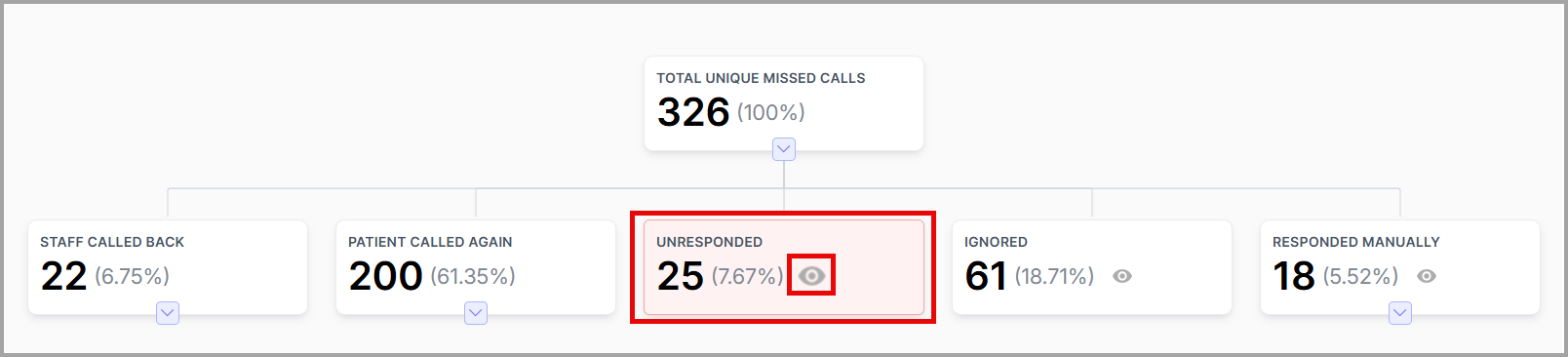
4. Unresponded
- The number of unique missed calls where no agent has followed up.
Clicking the Show (Eye) icon opens an overlay that provides direct access to the corresponding call log for detailed review.
- This is the most critical metric — it represents truly lost opportunities or service lapses.
5. Ignored
Missed calls that were intentionally or system-marked as ignored — for instance, test calls or spam. Clicking the Show (Eye) icon opens an overlay window with detailed information and a link that allows users to navigate directly to the corresponding call log for further review.

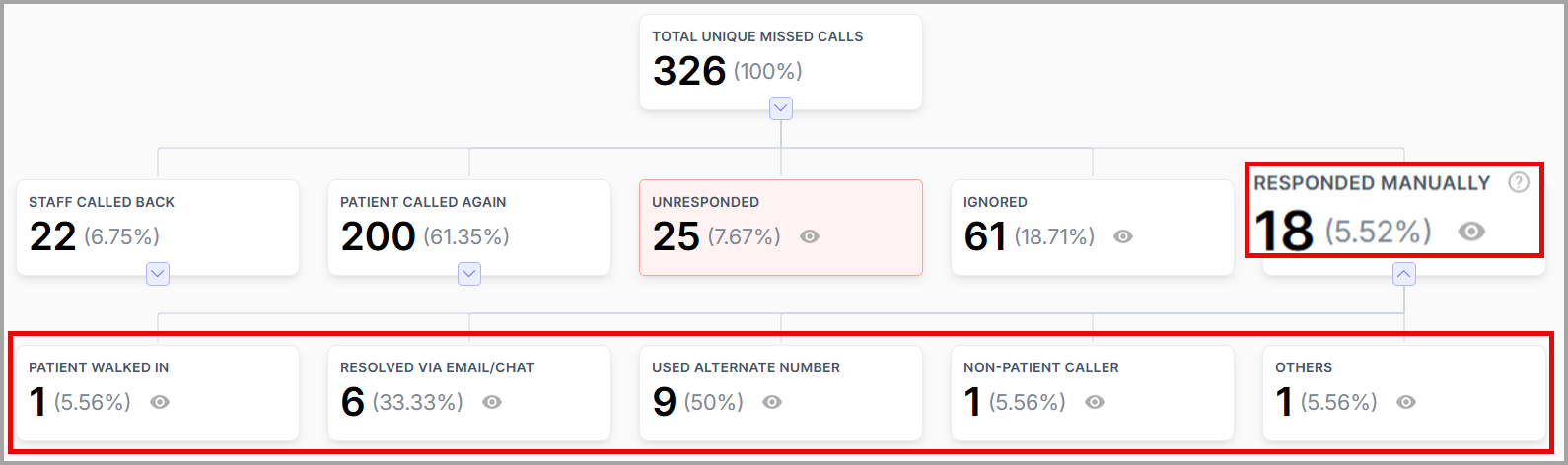
6. Responded Manually
- Sometimes, an agent manually marks a call as responded, without an automatic system log — for example, they handled the case offline or through another channel. This keeps the analytics consistent, even if not all follow-ups are tracked through calls.
- Click Show (Eye) icon for summary metrics with direct call log access.
They are grouped into five:
a. Patient Walked In: The patient walked into the office in person
b. Resolved via Email/Chat: The query or concern was resolved email or chat
c. Used Alternate Number: The patient used an alternate number to reach the practice
d. Non-Patient Caller: Calls from non patient callers such as vendors, suppliers, etc.
e. Others: For reasons not covered in the above categories such as a wrong number or a call handled via a personal device.
| Note: In the dashboard, the metrics Unresponded and Staff Called Back – Not Connected are highlighted in red. These are key metrics indicating that the agent did not interact with the patient. |
Use Cases
- Identifying Response Gaps
Certain missed calls are not followed up by agents, leading to potential lost opportunities. Managers use the dashboard to filter by unresponded calls and assign follow-up tasks to agents.
- Improving Patient Experience
The Missed Call Analytics Dashboard helps ensure timely responses by highlighting missed calls and tracking staff follow-ups. By monitoring these metrics, teams can reduce patient frustration, build trust, and create a smoother communication experience. Prompt follow-ups show patients that their time and concerns are valued, which leads to higher satisfaction and stronger relationships.
- Location-wise Analysis
Some locations or SVMs may experience higher missed call volumes than others. By filtering the dashboard by Location or SVM, admins can analyze call patterns for each site and make informed decisions on staffing and resource allocation.
- From Missed Calls to Conversions: Measuring Effectiveness
The dashboard helps admins prioritize missed calls and assess staff responsiveness using the Staff Called Back metric. By reviewing the values under Staff Called Back > Connected > Booked, admins can track how many missed calls agents followed up on promptly and successfully converted into appointments.
The dashboard also shows how many Unique Missed Calls remain Unresponded or Ignored, helping identify response gaps. These insights help teams improve follow-up efficiency, strengthen patient engagement, and increase conversions and revenue.
Benefits
- Minimizes Lost Opportunities: Ensures timely follow-ups, improves overall service reliability, and contributes to a higher conversion rate.
- Performance Insights: Identifies high performers for recognition, highlights training needs, and fosters accountability.
- Improves Patient Experience: Enhances patient satisfaction, reduces frustration, and builds trust in your service.
- Operational Efficiency: Helps balance workloads, speeds up response times, and supports more efficient operations.
Support / Contact
Need further help? Contact support@voicestack.com or call 407-833-6436.
Was this article helpful?
That’s Great!
Thank you for your feedback
Sorry! We couldn't be helpful
Thank you for your feedback
Feedback sent
We appreciate your effort and will try to fix the article