TABLE OF CONTENTS
- Accessing the Feature
- Filters and Controls
- Different Tabs of Conversation AI
- Use Cases
- Benefits
- Best Practices
- Support / Contact
Accessing the Feature
- Log into the Admin App.
- Navigate to Conversation AI.
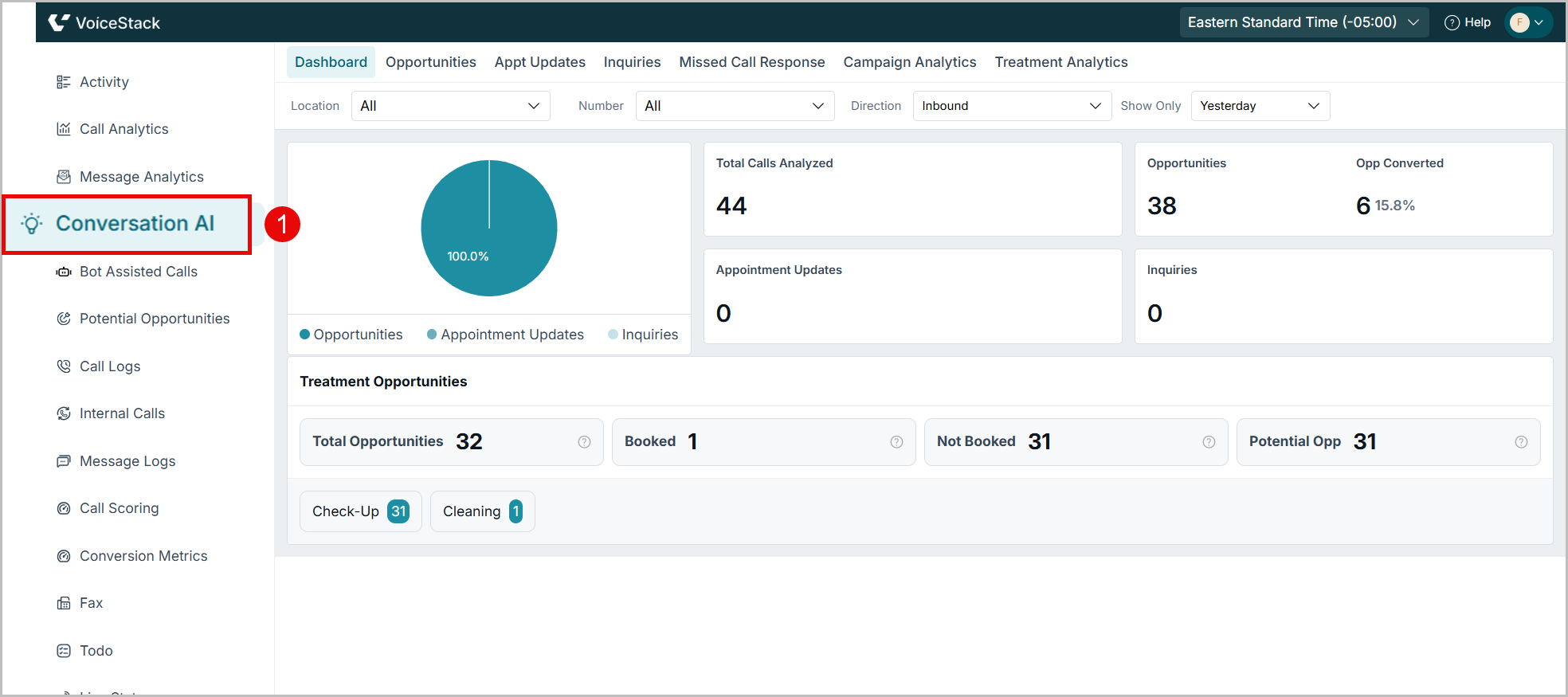
Filters and Controls
| Filter | Description |
|---|---|
| Location | Filter data by specific location or view for “All” locations. |
| Number | View metrics for all numbers or a selected contact number. |
| Direction | Choose between Inbound or Outbound call data. |
| Show Only | Select between today, yesterday or custom |
| Contact Type | Choose between All, Existing and New patient |
| Tip: Filters help narrow down analytics for more relevant insights. Adjusting the date range or location for specific information. |
Different Tabs of Conversation AI
Conversation AI includes the following tabs ,each focusing on a specific aspect of call performance and patient engagement. These tabs organize AI-analyzed data into meaningful categories, helping users quickly access insights related to opportunities, appointments, inquiries, missed calls , campaigns and treatments.
1. DASHBOARD
Use the Dashboard tab to view summarized insights from all AI-analyzed calls. This section highlights total call volumes, category-wise distribution, and treatment-related opportunity trends.
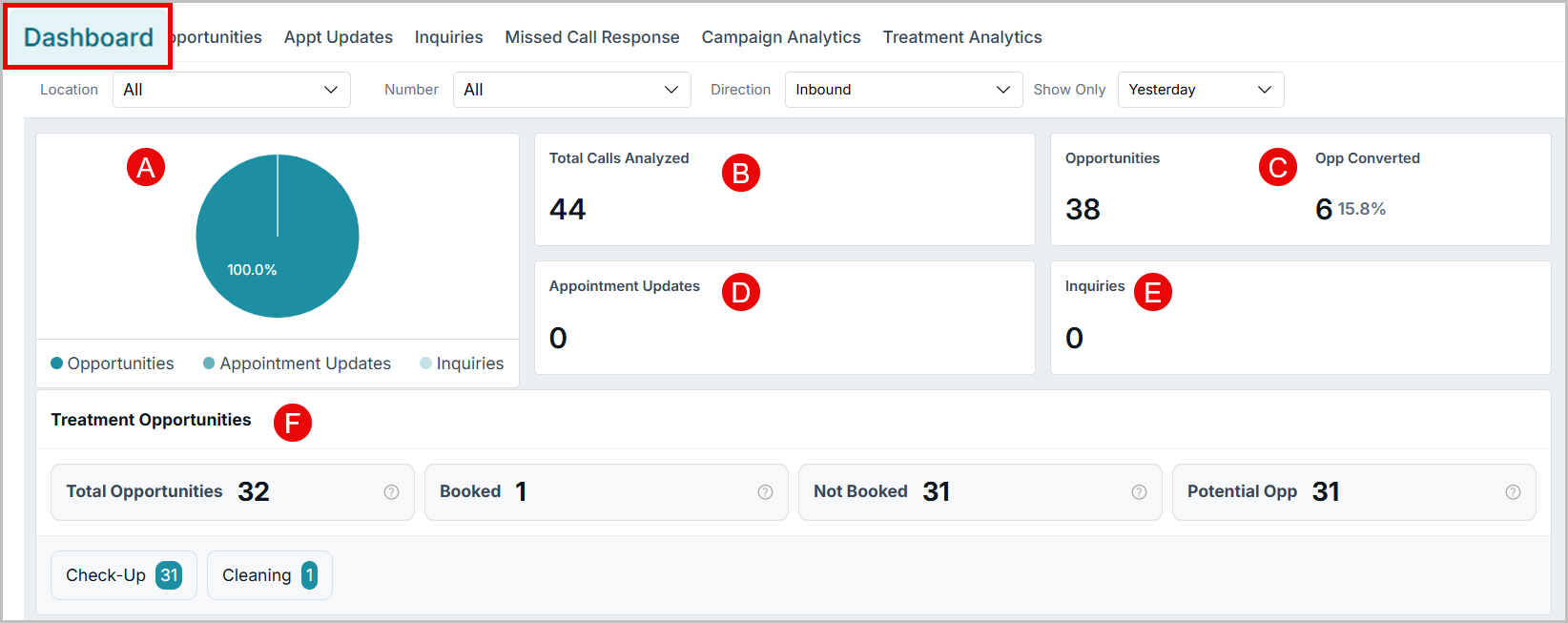
A) Piechart - Call Distribution
Displays the percentage split of analyzed calls and categorizes into:
- Opportunities
- Appointment Updates
- Inquiries
Helps visualize which type of call outcome is most common during the selected date range.
B) Total Calls Analyzed
Shows the total number of calls processed by Conversation AI.
C) Opportunities
Represents calls where the AI identified the purpose as new appointment booking or an emergency appointment. These calls indicate an intent to schedule an appointment and may or may not have resulted in a booking.
Field Breakdown (Example):
- Opportunities: 294
- Opportunities Converted: 90
- Conversion Rate: 30.6%
D) Appointment Updates
Displays how many calls were related to rescheduling, cancellation or confirmation of existing appointments.
E) Inquiries
Shows calls that were informational or general queries not resulting in an appointment opportunity.
F)Treatment Opportunities
This section provides a breakdown of specific treatment categories identified from AI-analyzed calls.
| Metric | Description |
|---|---|
| Total Opportunities | Total number of treatment-related opportunities identified (e.g., 196). |
| Booked | Number of treatment opportunities successfully booked (e.g., 73). |
| Not Booked | Number of opportunities that did not result in a booking (e.g.,123). |
| Potential Opp | Treatment related Opportunities with a high probability of conversion (e.g.110). |
- Each treatment type identified is displayed as a labeled tile with counts:

2. OPPORTUNITIES
The Opportunities tab provides a view of all appointment opportunities identified from analyzed calls. It helps track how many of these opportunities were successfully converted into booked appointments and highlights the key reasons why some were not booked.
By monitoring conversion rates and booking trends, this tab enables practices to evaluate performance and identify recurring challenges to improve appointment conversions.
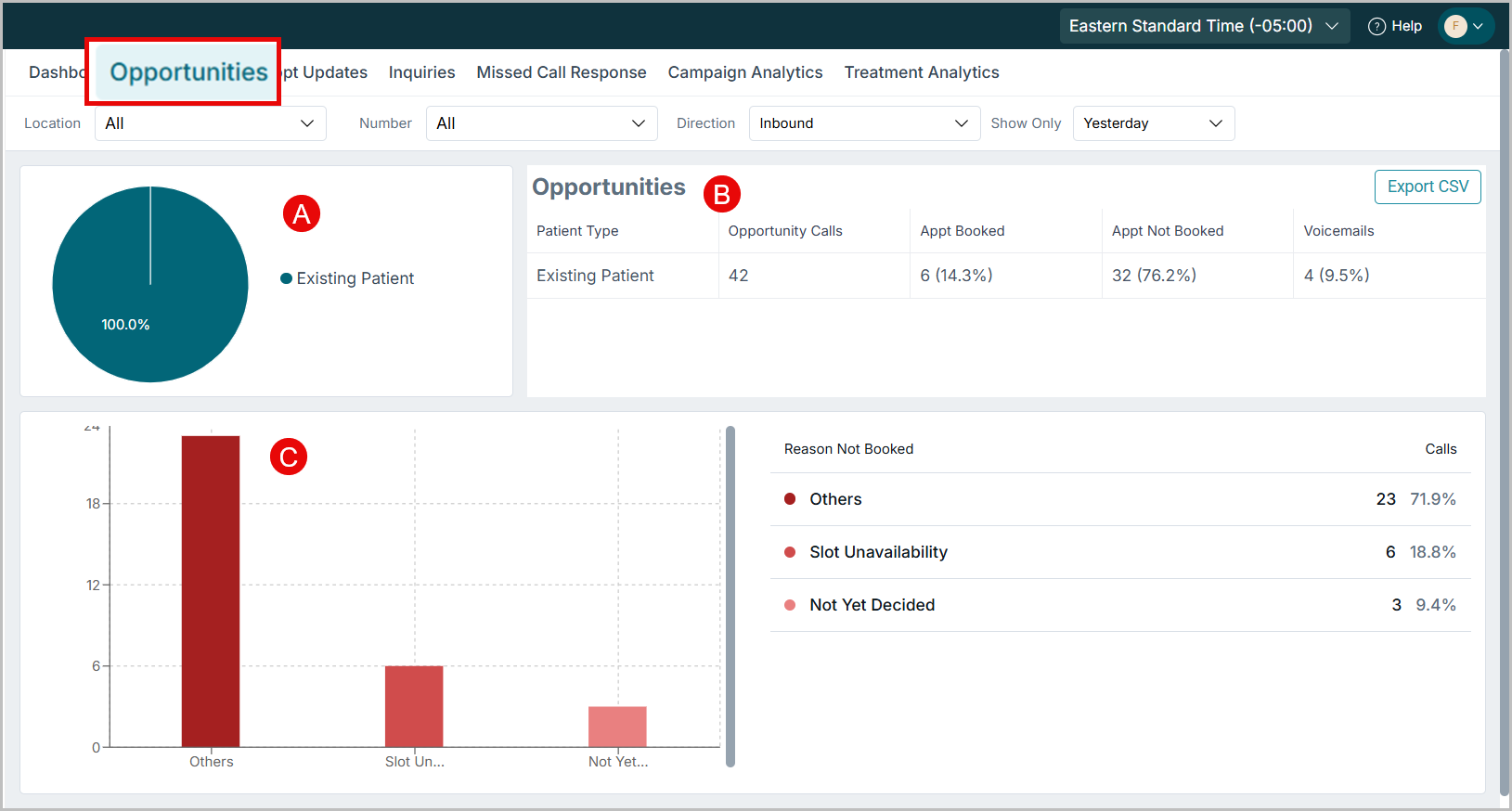
A. Patient Type Breakdown (Pie Chart)
Displays the distribution of opportunities by patient type:
- Existing Patient – Patients already registered or known to the practice.
- New Patient – First-time callers or new prospects.
This helps understand whether the majority of opportunities are coming from existing or new patients.
B. Opportunities Summary Table
Provides a numerical summary of all opportunity calls segmented by patient type. This table highlights how effectively calls from new or existing patients are being converted into appointments, providing a quick view of booking success rates.
The table can be exported for offline viewing using the “Export CSV” option.
C. Reasons Not Booked
This section identifies the primary reasons why opportunity calls did not result in a booking.
The following Insights are presented in the form of a bar chart:
- Pending Agent Action: Follow up required; action yet to be taken.
- Slot Unavailability: No suitable time slots available for booking.
- Not Yet Decided: Patients require more time to confirm.
- No Insurance / Patient Declined: Indicates external constraints or personal decisions.
The color-coded bar chart provides a visual summary, helping managers quickly identify the most common booking barriers.
3. APPT (Appointment) UPDATES
The Appointment Updates tab logs every appointment-related interaction handled by the AI, including reschedules, confirmations, and cancellations. It provides clear visibility into how patient appointments are being managed through calls, helping clinics track scheduling activity and identify recurring reasons for cancellations or changes.
By analyzing these trends, practices can improve appointment management, minimize missed appointments, and ensure a smoother scheduling experience for patients.
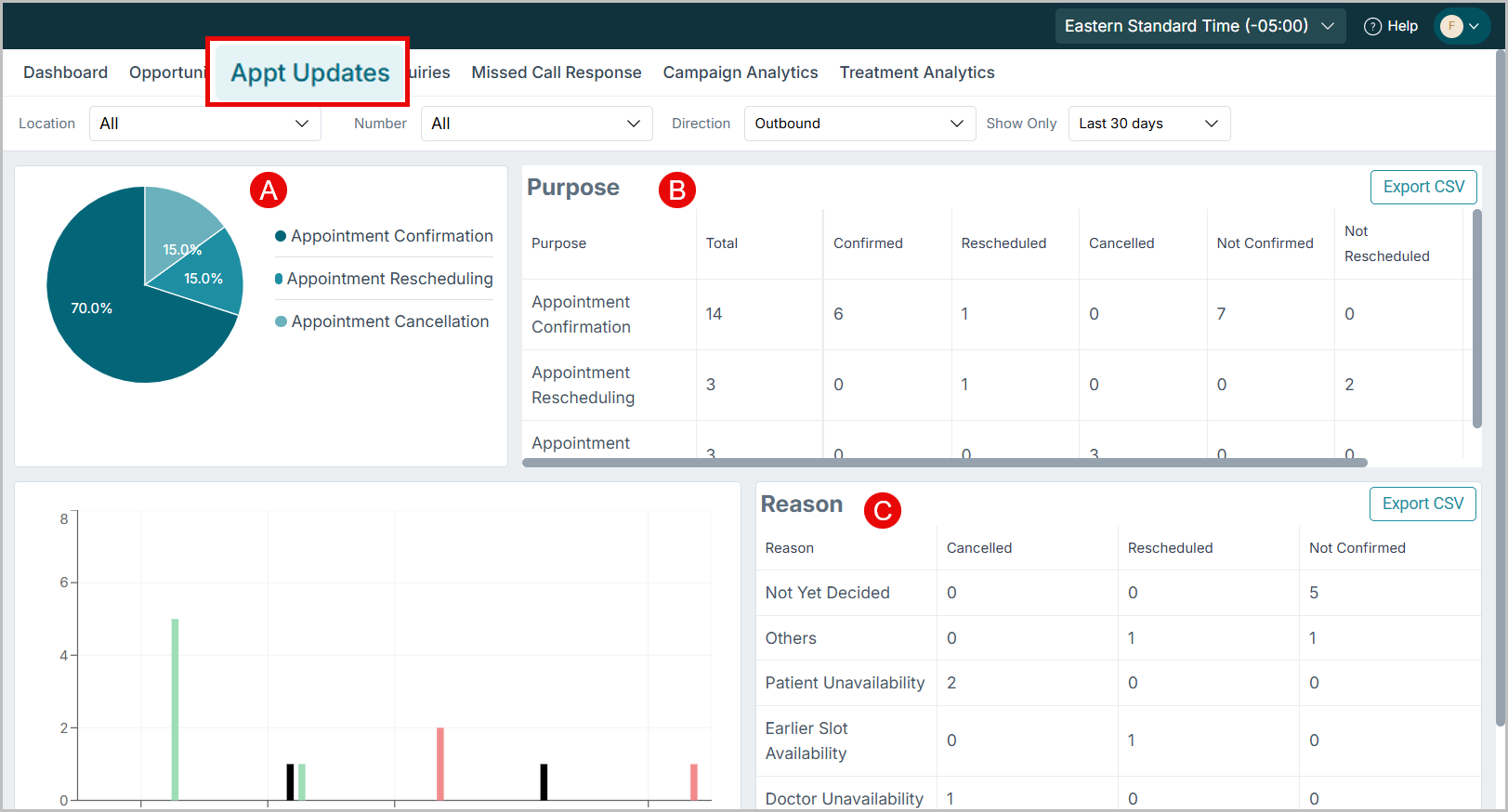
A. Appointment Update Breakdown
A pie chart displaying the proportion of appointment -related calls categorized into:
- Appointment Rescheduling (e.g., patients requesting new slots)
- Appointment Cancellation (patients cancelling scheduled visits)
- Appointment Confirmation (patients confirming existing appointments)
This pie chart helps identify if the majority of patient calls are about rescheduling, cancellations, or confirmations.
B. Purpose Summary Table
Provides a tabular view of all appointment-related calls and their outcomes. This table helps understand how many appointments were successfully rescheduled, cancelled, or confirmed, along with unprocessed cases that would need follow-up. Click “Export CSV” in the top right corner for deeper analysis.
C. Reason
This section provides insights into why appointments were cancelled, rescheduled, or left unconfirmed. The bar chart visually represents these reasons, color-coded by type (Cancelled, Rescheduled, Not Confirmed), making it easy to identify high-impact factors at a glance.
Use the Export CSV button at the top-right corner to download the report for offline review.
4.INQUIRIES
The Inquiries tab captures all patient questions that do not directly lead to a booking. These include common queries about treatment availability, operating hours, insurance coverage, or services offered. Although such calls may not generate immediate revenue, they play a crucial role in patient engagement and building future opportunities.
This tab provides insights into the types of inquiries received and categorizes them based on their purpose — such as general questions, appointment-related queries, insurance clarifications, treatment details, or payment concerns. By analyzing these trends, practices can identify what patients most frequently call about and address recurring information gaps effectively.
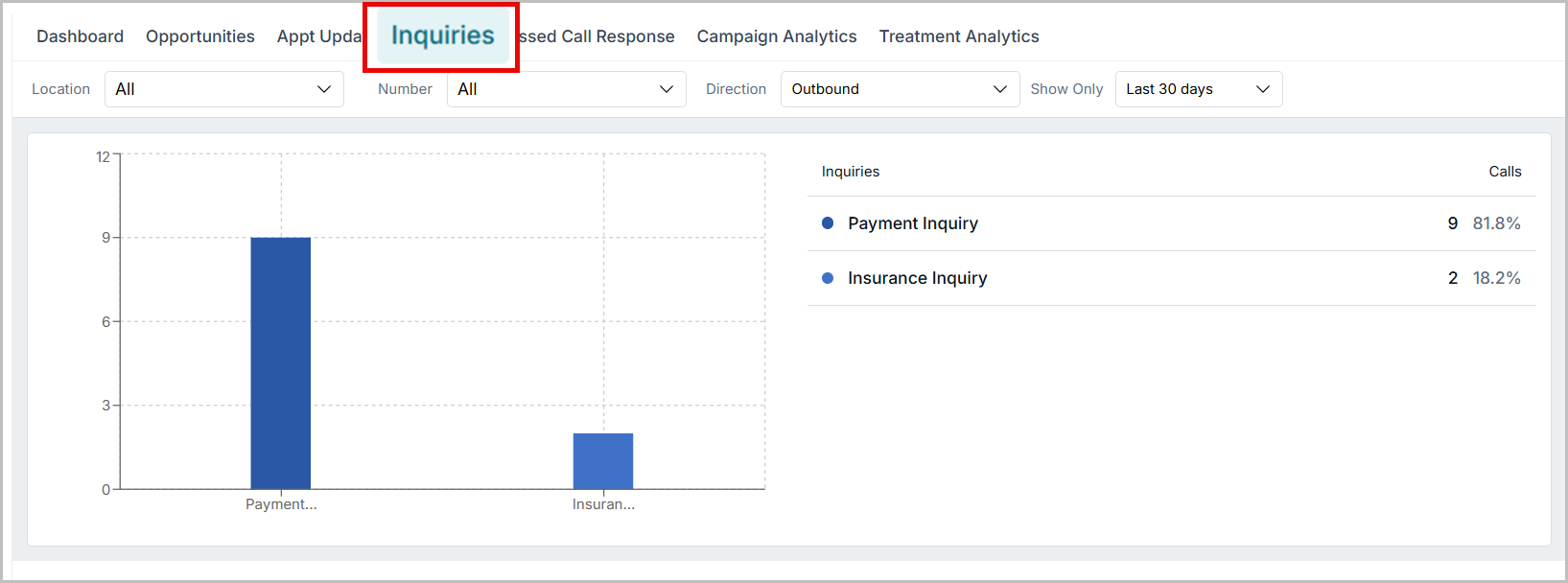
The table on the right lists the inquiry types, total call counts, and their corresponding percentages. Common inquiry categories include General Inquiries, Existing Appointment Inquiries, Insurance Inquiries, Treatment Inquiries, and Payment Inquiries.
The bar chart on the left visually represents the number of calls received for each inquiry type, helping users quickly identify the most frequent inquiry categories.
| Note: Each value in the Conversation AI dashboard is clickable and will take you to the call log for a detailed view. |
5.MISSED CALL RESPONSE
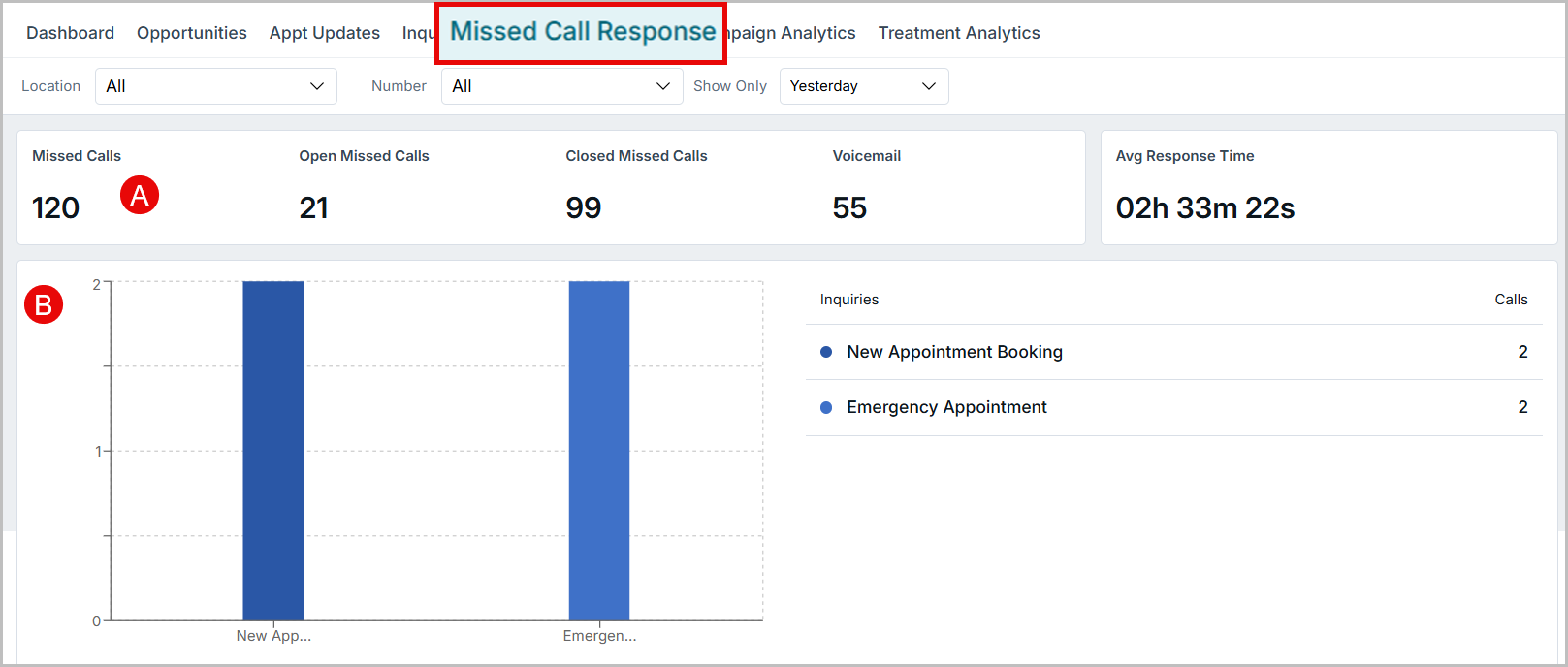
The dashboard is a summary of all missed call activities and how effectively they were handled by the practice. Use this dashboard for identifying delayed callbacks, tracking voicemail volumes, and understanding the types of inquiries received through voicemails.
A.Key Metrics
The summary section at the top displays essential missed call performance metrics:
| Metric | Description |
|---|---|
| Missed Calls | Total number of calls that were not answered during the selected time period. |
| Responded | Number of missed calls that were followed up or returned by an agent. |
| Unresponded | Missed calls that have not yet received a response or follow-up. |
| Ignored | Calls that were intentionally not attended or marked as ignored. |
| Voicemail | Calls where the patient left a voicemail message. |
| Average Response Time | The average time taken by agents to respond to missed calls during the selected time range. |
B. Voicemail inquiry Distribution
The bar chart on the left visualizes the number of Voicemails categorized by inquiry type.
Each bar represents a specific inquiry category for which a voicemail was received, allowing users to quickly identify the most common voicemail topics.
Examples include:
- New Appointment Booking
- Emergency Appointment
- Others
- General Inquiry
- Appointment Confirmation
- Appointment Rescheduling
- Emergency Medical Assistance
This visual helps identify high-priority voicemails (such as new appointments or emergencies) that require prompt attention.
The table on the right lists each inquiry type along with the total number of calls received under that category. It provides a quick reference to understand call distribution and focus areas.
By combining insights from the chart and table, admins can quickly assess the nature of missed calls and prioritize follow-up actions accordingly.
6.CAMPAIGN ANALYTICS
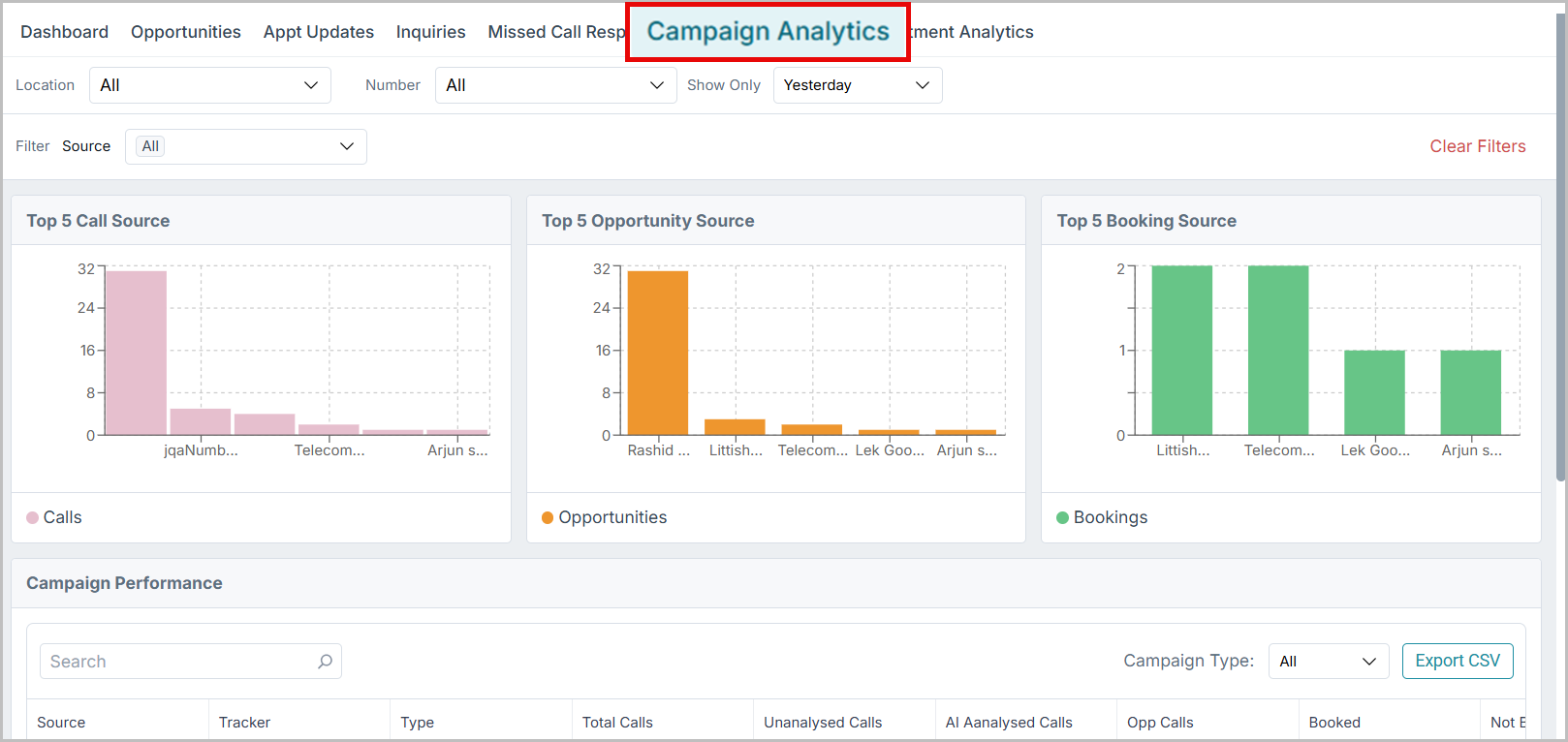
The campaign analytics dashboard is primarily used to analyze campaign performance across all marketing channels. It combines both Dynamic Number Insertion (DNI) and static tracking numbers to provide a unified view of call activity and conversions.
Dynamic Number Insertion (DNI) assigns unique phone numbers to different marketing channels such as search ads, social media, or email campaigns. For DNI campaigns, data is automatically captured through dynamic tracking numbers that replace your website’s regular contact numbers in real time. This helps identify the exact source that led to each call, giving you accurate campaign insights and better marketing attribution.
In contrast, static campaigns use fixed tracking numbers that are manually assigned to specific ads or channels. They provide a consistent way to track calls from traditional sources like print media, billboards, or offline marketing campaigns.
Dashboard Overview
This dashboard visually and numerically displays the performance of your campaigns across three main categories:
- Call Source – Shows the sources that generated the highest number of incoming calls. For DNI campaigns, this is determined by traffic sources such as Google Ads, Facebook Ads, or Google My Business, captured via UTM parameters and click IDs.
- Opportunity Source – Displays which campaigns or sources led to the most qualified opportunities. DNI makes it easier to attribute these leads to the exact ad/source that drove the call.
- Booking Source – Displays which campaigns or sources led to the most qualified opportunities. DNI makes it easier to attribute these leads to the exact ad that drove the call.
Users can filter results by Location, Number, Source, and Date Range (for example, “Last 30 days”) to analyze performance over a specific period.
Charts Overview
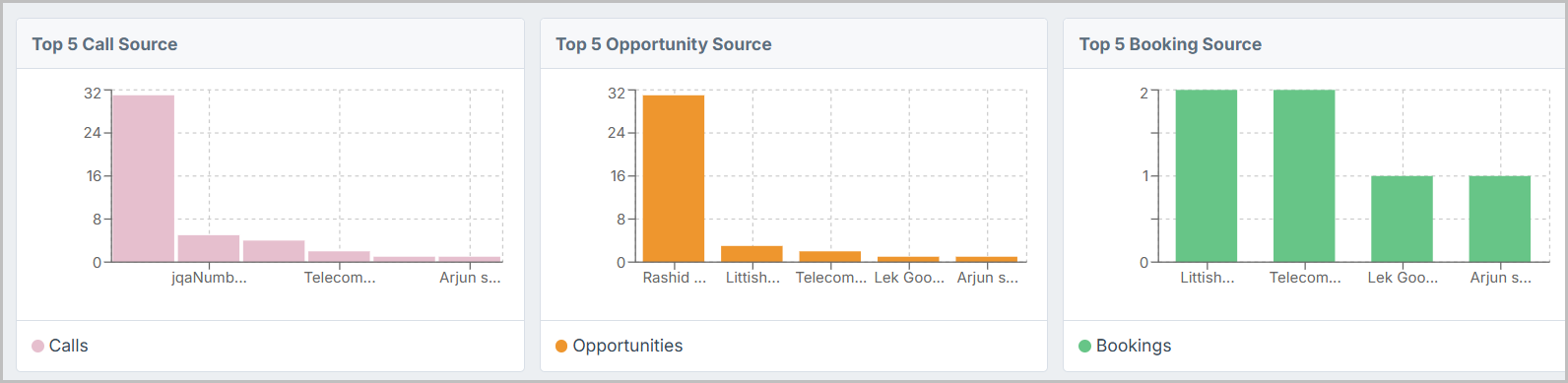
Top 5 Call Source
This chart displays the top five sources contributing the most inbound calls. For DNI campaigns, these results are based on dynamically swapped numbers shown to unique visitors, giving an accurate picture of which online sources drive the most engagement.
Top 5 Opportunity Source
This chart highlights the top five sources that generated the most opportunities — calls that were converted into potential leads.
For example, a DNI campaign linked to Google Ads can reveal which ad group or keyword led to the call, providing clarity on opportunity quality by source.
Top 5 Booking Source
This view presents the top five sources that led to confirmed appointments or bookings.
For DNI-enabled campaigns, this allows practices to pinpoint which dynamic numbers (and therefore which ads or landing pages) result in actual conversions.
Campaign Performance Table
The campaign performance table combines both DNI (Dynamic) and Static campaign data to give a complete picture of call and booking activity.
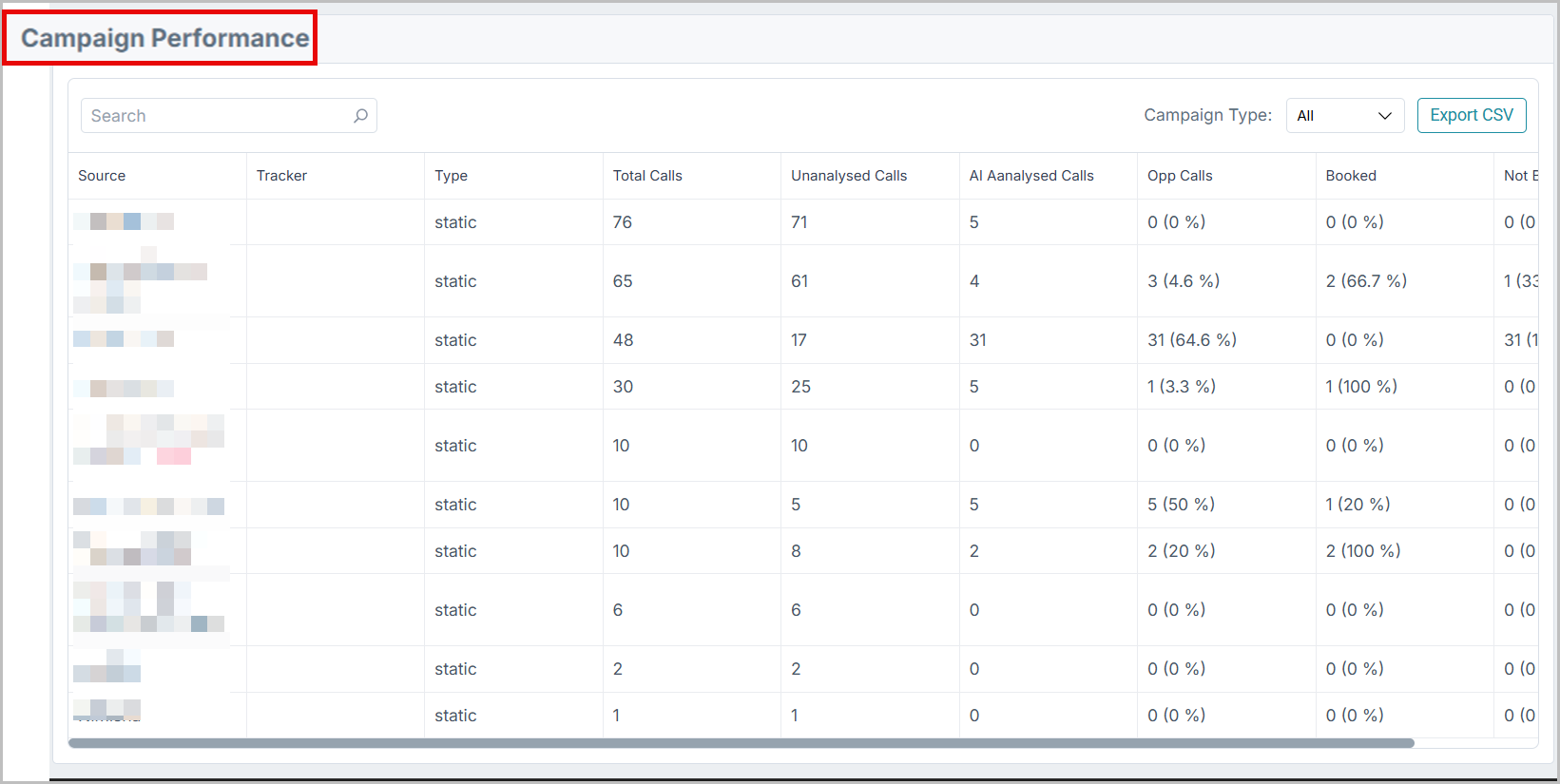
It provides a detailed breakdown of each campaign’s performance. The following are the fields in the table and their description:
Fields Description
| Field | Description |
|---|---|
| Source | The name of the call tracking source.In DNI campaigns, this value is captured from UTM parameters (e.g., source=google, source=facebook). |
| Tracker | Indicates the tracker type — Dynamic (for DNI campaigns) or Static (for fixed numbers) |
| Type | Specifies whether the campaign is configured for dynamic tracking (DNI) or static call tracking. |
| Total Calls | The total number of calls received from that source or campaign. For DNI campaigns, this reflects all calls made through dynamically inserted numbers. |
| Opp Calls | The number (and percentage) of calls related to appointment bookings, new patient inquiries, emergencies, or treatment requests. |
| Booked | The number (and percentage) of opportunity calls that resulted in confirmed bookings. This is a key success metric for both dynamic and static campaigns. |
| Not Booked | The number (and percentage) of calls that did not result in bookings. |
How to Use These Insights
- Identify top-performing DNI campaigns to see which marketing channels, ads, or landing pages generate the most calls and conversions.
- Analyze conversion gaps between opportunities and bookings to refine your call handling, lead follow-up, or messaging strategy.
- Compare dynamic vs. static performance to understand how DNI impacts call attribution accuracy and ROI measurement.
7.TREATMENT ANALYTICS
Provides a detailed overview of treatment-related opportunities, including how many were booked and how many remain unbooked. This helps practices assess treatment demand, booking efficiency, and follow-up requirements for unconverted opportunities.
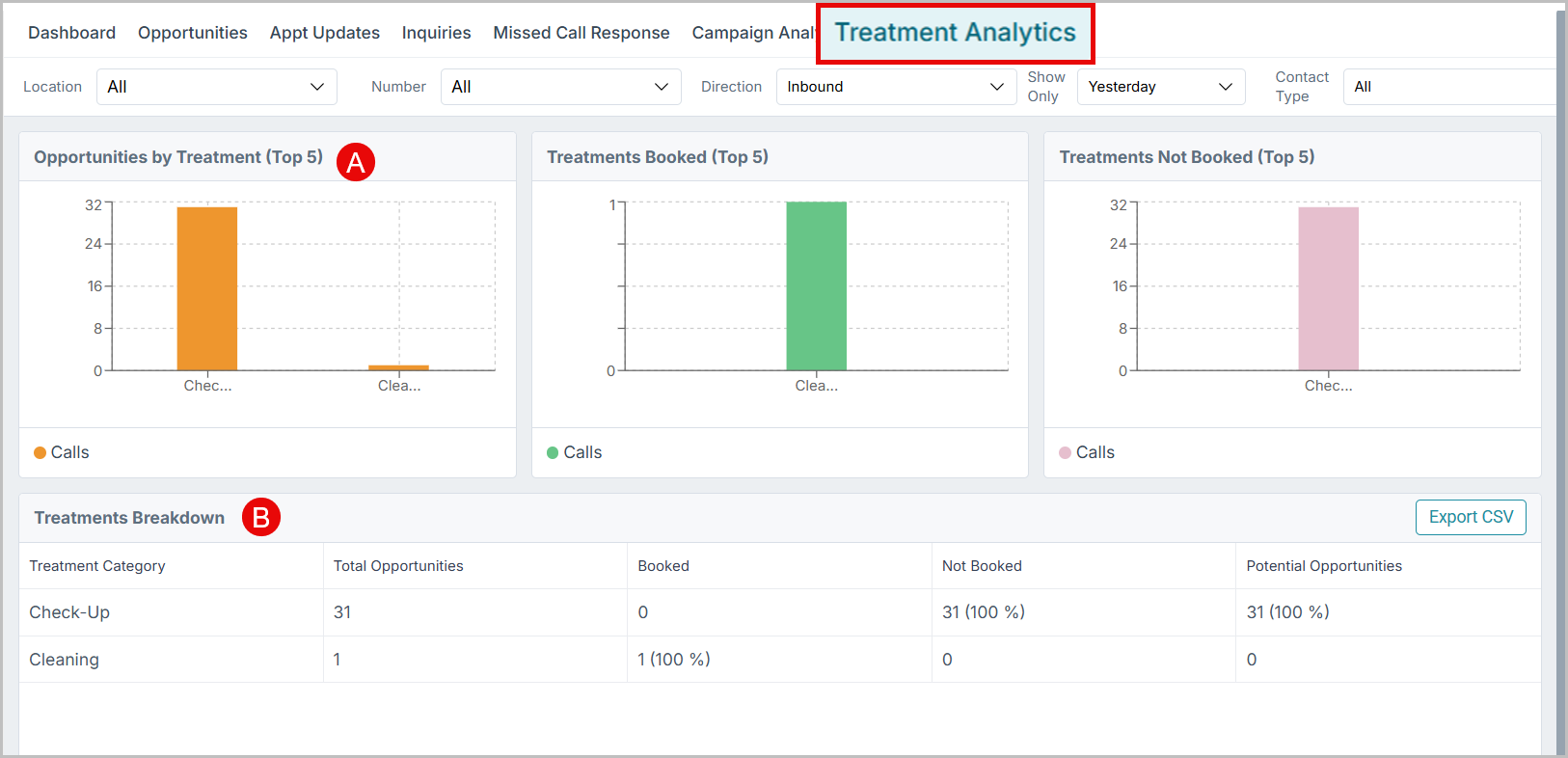
A. Opportunities by Treatment (Top 5)
This section displays the top five treatments that received the highest number of opportunity calls. Each bar represents a treatment type—such as Root Canal, Emergency, or Cleaning—indicating how many inquiries were generated for each.
Hovering over a bar reveals the exact number of calls associated with that treatment.
B. Treatments Booked (Top 5)
This visualization highlights the top five treatments that were successfully booked from the received opportunities. It offers a quick snapshot of high-performing treatment categories with stronger booking conversions.
Hover over any bar to view the number of confirmed bookings for each treatment.
C. Treatments Not Booked (Top 5)
This section focuses on treatments that were not converted into bookings. Each bar corresponds to a treatment category that may require follow-up or additional engagement.
By hovering over the bars, users can view the count of unbooked treatments, helping teams identify missed opportunities and potential areas for improvement.
D. Treatments Breakdown (Summary Table)
The Treatments Breakdown table provides a detailed view of each treatment category, showing the count of total opportunities, booked, not booked, and potential opportunities. This table provides an expanded view of the data displayed in the bar charts above. Potential Opportunities in the table represent the unbooked cases that have a high chance of conversion.
Use the Export CSV option to download this table for further analysis or reporting.
| Note: The Treatment Analytics Dashboard includes an additional filter — Contact Type (All, Existing, New Patient) - which is not available in other tabs. This helps differentiate treatment data based on patient type clearer insights. |
Use Cases
- Identify High Demand Treatments- Use treatment analytics to view which treatments generate the most opportunities
- Evaluate response to Missed calls- Review the missed call response metric to ensure all missed calls and voicemails are followed up.
- Manage appointment cancellations- Use the Appointment Updates tab to monitor cancellations.
Benefits
- Improved Visibility: Gain real-time insights into patient call behavior and appointment patterns.
- Data-Driven Decisions: Identify booking trends and adjust staffing or scheduling accordingly.
- Enhanced Patient Experience: Faster responses to inquiries and missed calls improve satisfaction.
- Operational Efficiency: AI-driven classification eliminates the need for manual call reviews.
- Revenue Growth: Convert more opportunities into confirmed appointments through timely follow-ups.
Best Practices
- Follow up on unbooked opportunities- Use the “Reasons Not Booked” section under Opportunities to analyse. Ensure timely follow-ups—especially for “Not Yet Decided” and “Pending Agent Action” cases—to improve conversion rates.
- Optimize Peak-Hour Scheduling – If the Appointment Updates tab shows heavy reschedules, review slot allocation
- Use the Missed Call Response dashboard to track average response times and unresolved calls. Aim to return missed calls as quickly as possible—especially for inquiries tagged as emergencies or new patient bookings.
- Use Treatment Analytics to identify top requested treatments and monitor booking vs. non-booking trends. This helps with inventory planning, provider allocation, and targeted follow-up for high-value services.
Support / Contact
Need further help? Contact support@voicestack.com or call 407-833-6436.
Was this article helpful?
That’s Great!
Thank you for your feedback
Sorry! We couldn't be helpful
Thank you for your feedback
Feedback sent
We appreciate your effort and will try to fix the article