TABLE OF CONTENTS
- Accessing the Feature
- Filters and Controls
- Dashboard Overview
- Inbox Tab
- Sent Tab
- Use Cases
- Highlights
- Best Practices
- FAQ's
- Edge Cases
- Support / Contact
Accessing the Feature
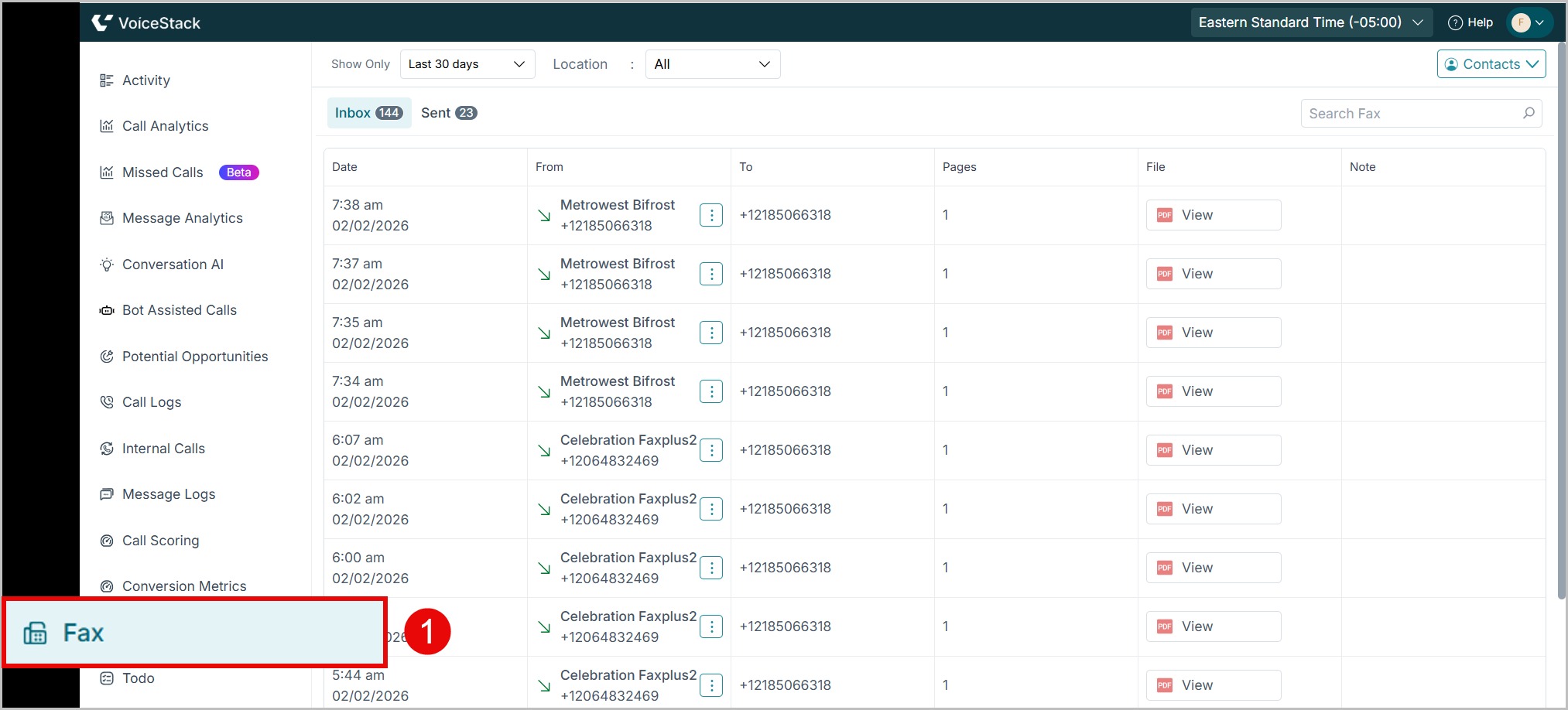
- Log in to the Admin App.
- Navigate to the Fax section.
Filters and Controls
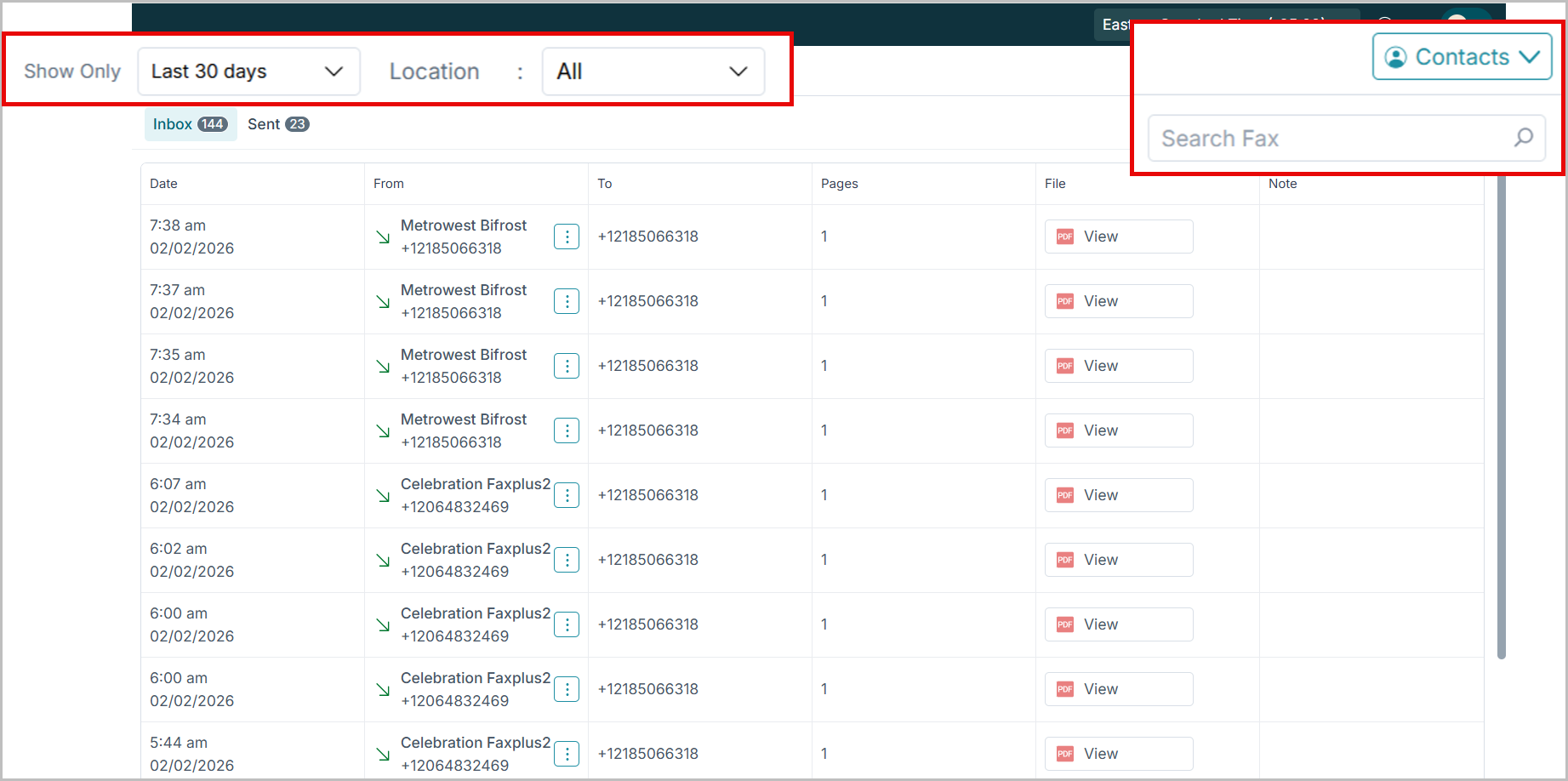
| Filter/Control | Description |
| A) Show Only | Select a custom date range such as “Last 7 days,” “Last 30 days,” or “Custom Range.” |
| B) Location Dropdown | Filter results by office or practice location. |
| C) Search Fax | Search by fax number or name to find a specific record. |
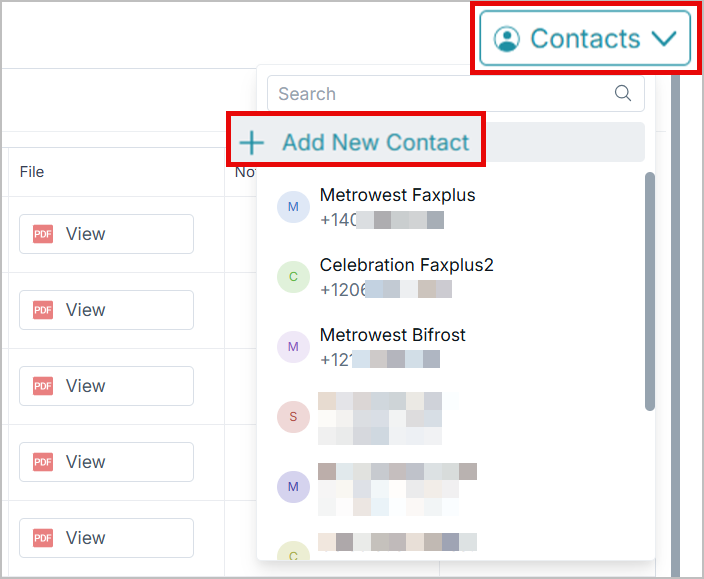
| D) Contacts | Shows the list of saved fax numbers and provides the option to add new contacts by entering the recipient’s first name, last name, and fax number. Manage saved Contacts directly from the Fax screen for quicker faxing access. |
| Tip: To add a new contact, click the Contacts drop-down and select +Add New Contact. |
Dashboard Overview
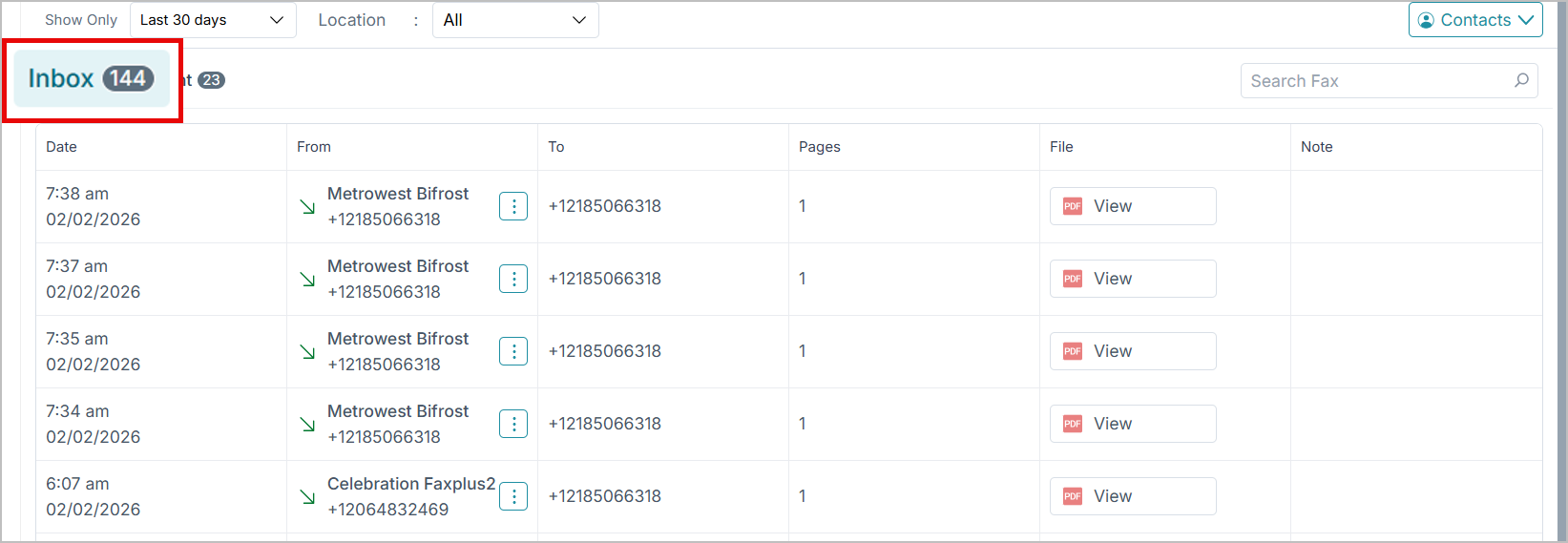
The Fax dashboard contains two tabs:
A) Inbox Tab – Displays all received faxes.
B) Sent Tab – Displays all outgoing faxes.
Inbox Tab
The Inbox tab displays all incoming faxes received by the system. Each entry includes sender details, time of receipt, number of pages, and access to view the fax document.
Key columns
| Field | Description |
| Date | Timestamp of when the fax was received. |
| From | Fax number or contact name of the sender. |
| To | Receiving fax line number in your practice. |
| Pages | Total number of pages in the received fax. |
| File | Click “View” to open or download the fax in PDF format. |
| Note | Any remarks entered by users (e.g., “Prescription Fax,” “Lab Report”). |
| Status | Shows delivery confirmation. “Delivered” means successfully received. |
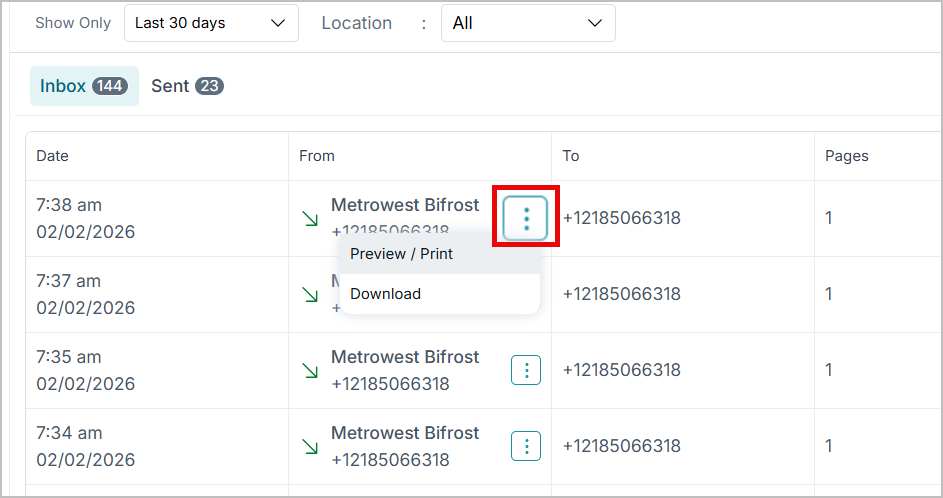
To preview or download the file that was faxed:
- Click the three dot menu (⋮) located in the From column and select the necessary option.
Sent Tab
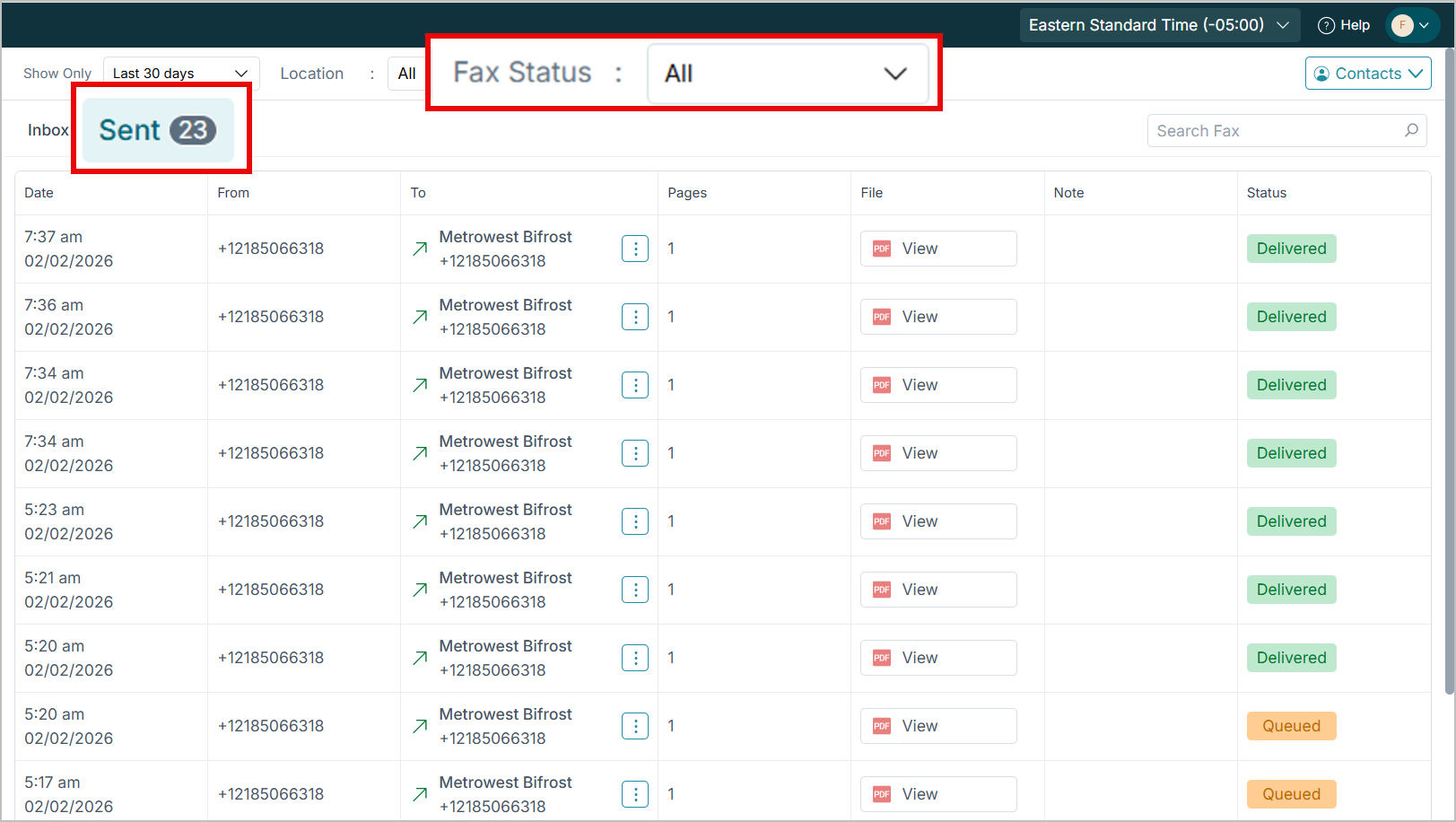
The Sent tab displays all outbound fax activity. It allows admins to verify whether a fax was successfully delivered or failed to reach the recipient.
Key columns
| Field | Description |
| Date | Time the fax was sent. |
| From | Fax number associated with the sender (practice line). |
| To | Recipient fax number or contact name. |
| Pages | Total pages included in the fax. |
| File | 'View' button opens the sent PDF copy. |
| Note | User remarks or system messages (e.g., “Test Fax,” “Failed: Unable to Connect to Recipient”). |
| Status | Delivery status — Delivered, Failed, or Pending. |
| Tip: Use the Fax Status drop-down to sort the grid by fax statuses. |
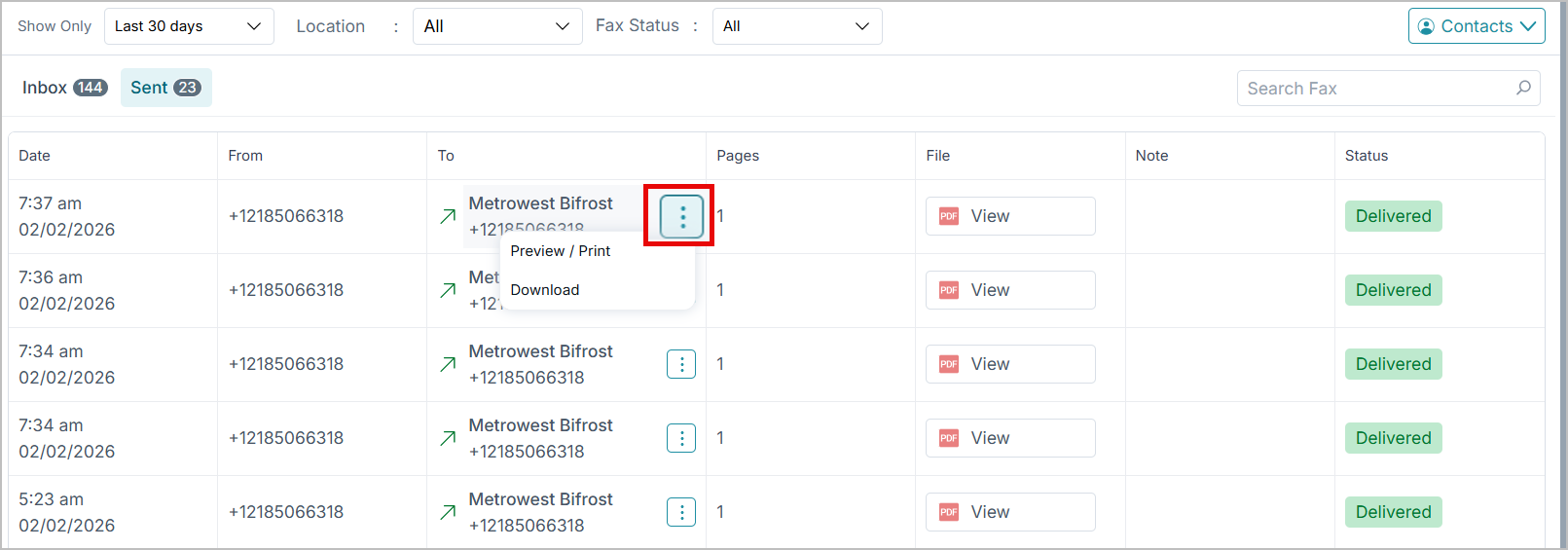
To preview or download the file that was faxed:
- Click the three dot menu (⋮) located in the To column and select the necessary option.
Use Cases
- Lab Reports/Referrals: Receive medical reports or send patient details securely to partner clinics.
- Insurance Documentation: Send claim forms or pre-authorization documents directly to insurance providers. This ensures HIPAA-compliant data exchange.
- Prescriptions / Orders: Forward prescriptions or material orders without printing or scanning.
Highlights
- The admin can view all sent and received faxes across the practice directly from the Fax dashboard.
- PDF view and download available for each fax.
- Separate tabs for Inbox and Sent faxes for easy management.
- Filter and search functionality for quick access to specific faxes.
Best Practices
- Review Failed faxes to resend or verify recipient numbers.
- Use descriptive Notes (e.g., “X-ray Request,” “Lab Report”) for easy retrieval later.
- Verify that the Fax Numbers under Configuration are active and correctly mapped.
FAQ's
Q: Why does a fax show “Failed: Unable to Connect to Recipient”?
A: The recipient’s line may be busy, offline, or invalid. Retry sending or confirm the destination number.
Q: Can I send a fax to multiple recipients?
A: No, each fax must be sent individually to ensure accurate delivery tracking.
Q: How can I view older fax records beyond 30 days?
A: Change the Show Only filter to a custom date range or export the data before archival.
Q: Can I send a fax from my computer to a traditional fax machine?
A: Yes. You can send faxes directly from your computer to any online or physical fax machine, as long as you have the recipient’s fax number. If the recipient is not using an online fax service, they will still receive the document on their traditional fax machine.
Edge Cases
Fax delivery depends on the recipient’s line availability. If the recipient’s fax machine is busy or offline, the fax may fail or retry automatically.
The maximum file size limit for a single fax is 20 MB.
Supported file formats for sending faxes are PDF and TIFF.
Support / Contact
Need further help?
Email: support@voicestack.com
Phone: 407-833-6436
Was this article helpful?
That’s Great!
Thank you for your feedback
Sorry! We couldn't be helpful
Thank you for your feedback
Feedback sent
We appreciate your effort and will try to fix the article