TABLE OF CONTENTS
Module: Admin App
Create a New User
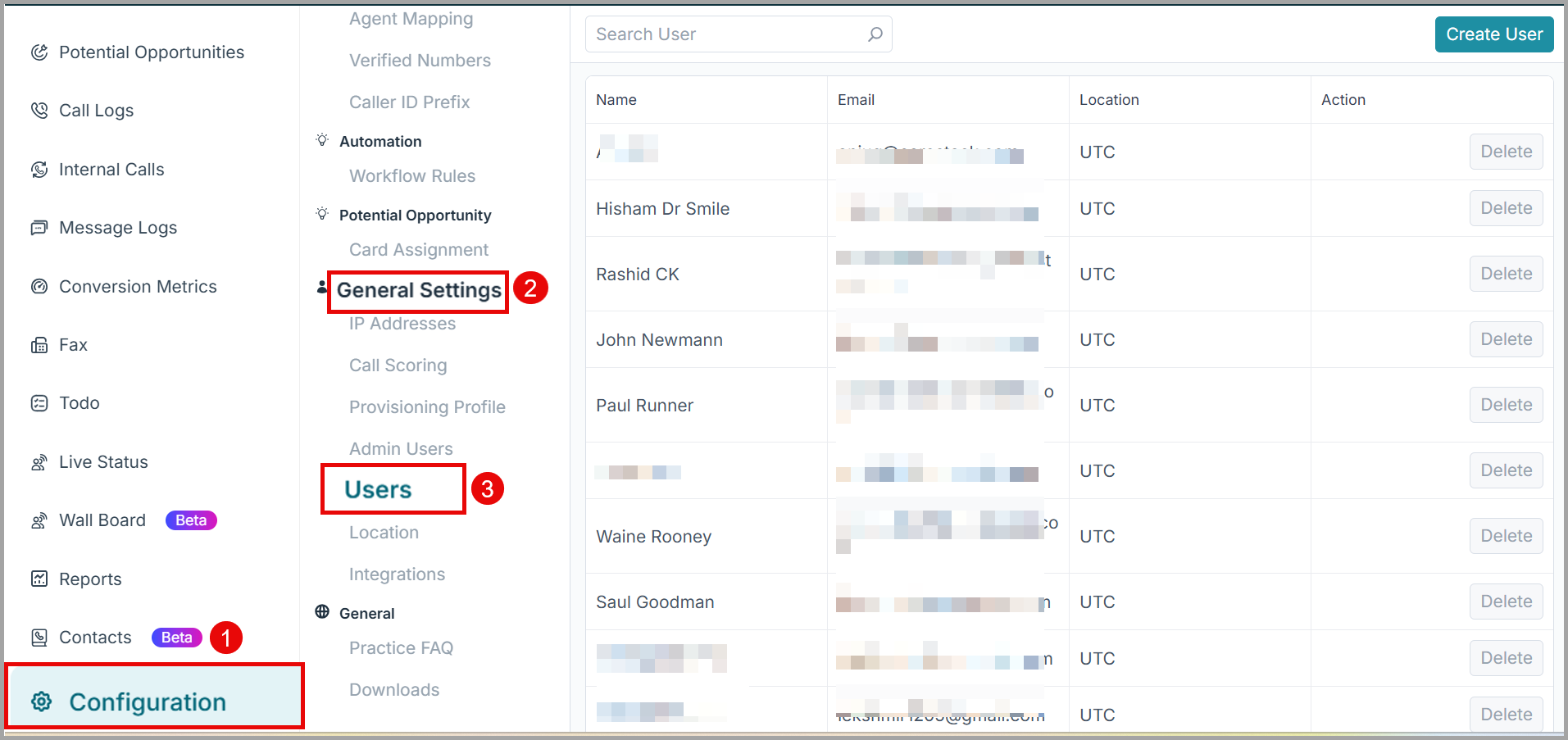
Navigate to Configuration > General Settings > Users.
The User screen displays a list of all registered users. You can narrow down the search using the filters at the top of the page.
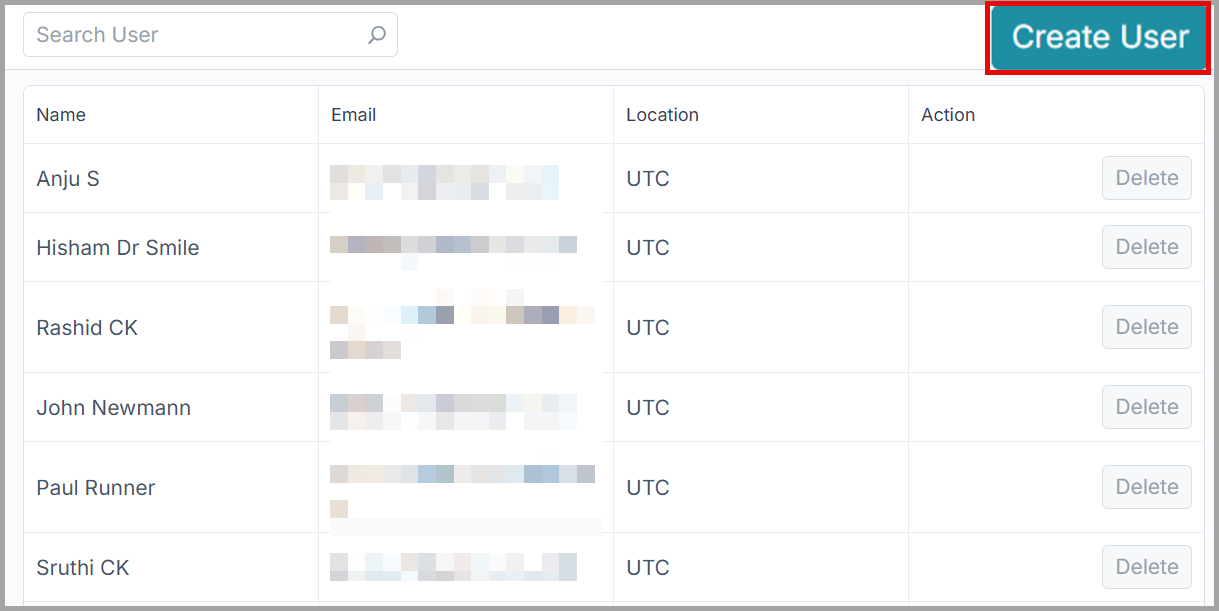
Click the Create User button.
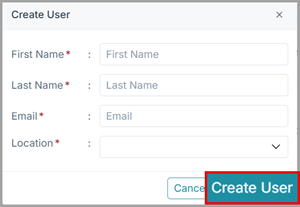
Specify the required details on the displayed screen:
First Name: Enter the First name of the user.
Last Name : Enter the Last name of the user.
Email: Enter the professional email address for the user.
Location: Choose the location(s) the user can access.
4. Click Create to add the user.
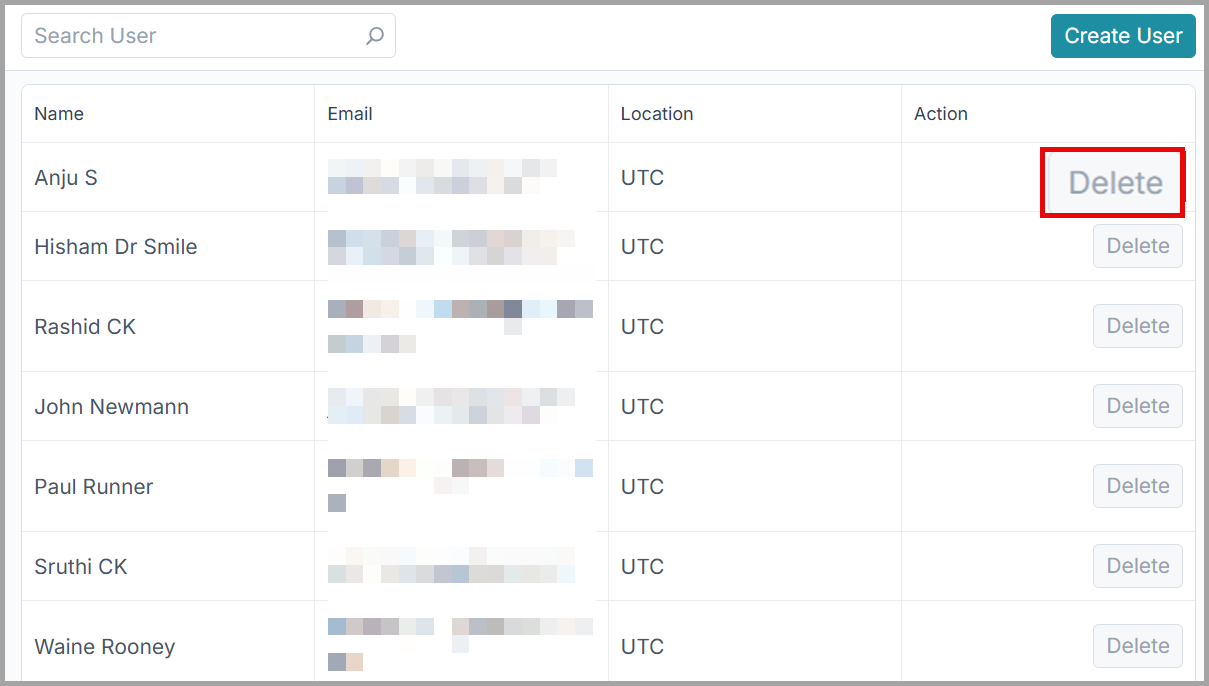
Remove an Existing User
Locate the user you wish to remove.
Click Delete.
Confirm the action in the pop-up message.
For detailed steps on assigning roles:
Refer to the relevant guide to designate the user as an Admin.
Refer to the appropriate guide to designate the user as an Agent.
Use Case Scenarios
Scenario | Action |
|---|---|
| New regional manager joins the team. | Create a user with the Report role and access to their specific branches only. |
| Front office lead needs to edit call queues. | Update their role to Admin to grant access to routing and queue settings. |
| Staff member leaves the practice. | Deactivate the user immediately to revoke access to practice data and settings. |
Benefits
View a complete list of all registered users across your organization.
Control access levels by assigning specific roles such as Admin or Super Admin.
Filter your user list by name, email, or location for quick management.
Assign specific phone numbers and locations to individual team members.
Best Practices & Tips
Revoke Promptly: Deactivate user access immediately when an employee leaves the practice or changes roles.
Consistent Naming: Use consistent naming formats for PMS User IDs to ensure seamless integration between VoiceStack and your practice management software.
Support
Mail us at support@voicestack.com or call 407-833-6436.
Was this article helpful?
That’s Great!
Thank you for your feedback
Sorry! We couldn't be helpful
Thank you for your feedback
Feedback sent
We appreciate your effort and will try to fix the article