Here’s how you can pause and resume call recording on your Polycom deskphone.
Press the Answer key on your Polycom deskphone to answer the incoming call.
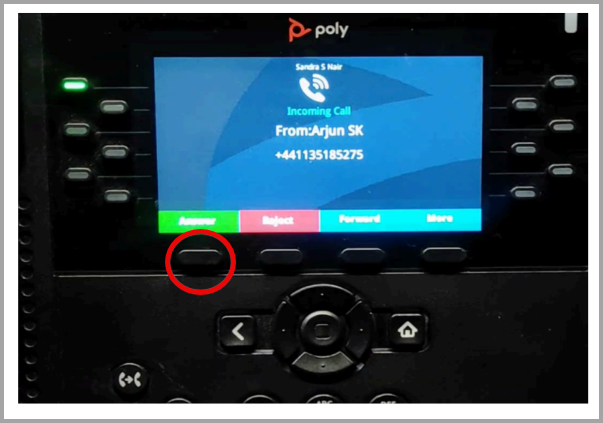
2. Once the call is connected, recording starts automatically and continues by default from the moment the call is answered.
3. To pause the recording during the call, dial *00 on the keypad.
You will hear an automated message saying "recording stopped." This confirms that the call is
no longer being recorded.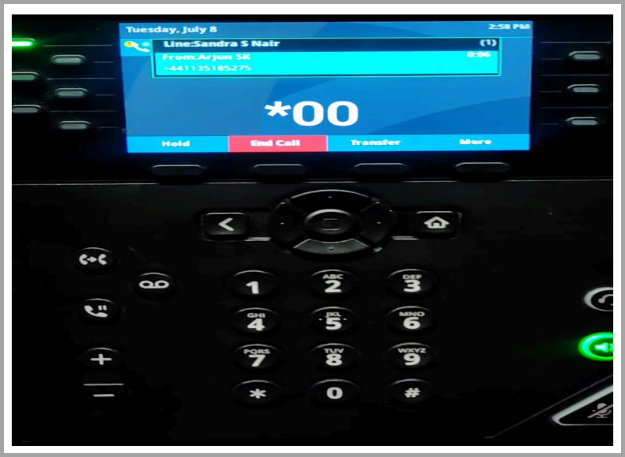
4. To resume call recording, dial *00 again, you will hear “recording started,” confirming that the recording has resumed.
Use Cases
Scenario Action Discussing Sensitive Patient Information Pause recording when collecting confidential details such as medical history, payment information, or personal identifiers. Handling Payment Details Temporarily stop recording while a caller shares credit/debit card information to maintain PCI compliance. Verifying Personal Data Pause recording when confirming sensitive data like date of birth, address, or identification numbers. Addressing Privacy Requests Pause recording if a caller requests that certain information not be recorded. Support
Mail us at support@voicestack.com or call 407-833-6436.
Was this article helpful?
That’s Great!
Thank you for your feedback
Sorry! We couldn't be helpful
Thank you for your feedback
Feedback sent
We appreciate your effort and will try to fix the article